
The Delta Executor Key is a temporary verification key required to unlock Delta Executor on Android and iOS before Roblox scripts can be executed.
Every Android and iOS installation requires a valid key generated through the official Delta Key System. Each key remains valid for up to 24 hours before expiring.
This guide explains how to get and use the Delta Executor Key, how the key system works, and how to fix common key and verification issues.
What Is Delta Executor Key?
The Delta Executor Key is an authentication credential that authorizes access to Delta Executor after your device successfully completes the required verification process.
Without a valid key, the Roblox script executor cannot attach to Roblox or execute Lua scripts.
Unlike a permanent license or activation code, each key is generated for a single verification session and automatically expires after its validity period, requiring a newly generated key before access can continue.
The key is used only to authorize Delta Roblox. It does not contain your Roblox account, password, personal information, or game progress.
Why Does Delta Executor Require a Key?
Delta Executor uses a key system to verify each activation request before script execution is enabled.
Instead of providing unrestricted access immediately after installation, the Delta Key verification process helps reduce automated abuse, restricts modified or unauthorized versions of the application, and manages the server resources required to generate and validate activation requests.
The key generation system also helps ensure that your device continues using a supported version after major updates, reducing compatibility issues caused by outdated Delta versions.
Because every key has a limited validity period, a new verification session is required after expiration before access can be restored.
How Does the Delta Key System Work?
The Delta Key System follows a verification workflow that generates a temporary access key only after all required checkpoints have been completed.
When you tap Receive Key inside Delta Executor, your browser opens the official key page, where you’ll complete the verification steps for the current key session.
After the verification is finished, the system generates a unique key linked to that session.
Copy the key, return to Delta Executor, paste it into the key field, and tap Continue to complete activation.
If the submitted key is valid, Delta Executor unlocks immediately and becomes ready to execute Lua scripts.
If the key is invalid, expired, incomplete, or no longer matches the active verification session, the activation request is rejected until a new key is generated.
Delta Executor Key Workflow
From opening Delta to unlocking script execution.
How to Get Delta Executor Key on Mobile (August 2026)
The process of obtaining a Delta Executor Key is almost the same on Android and iOS.
Open Delta Executor, request a key by tapping the Receive Key button, complete the required browser verification checkpoints, generate your 37-character Delta Executor Key, then return to the Roblox Executor and paste it into the key field to complete activation.
Let’s look at it step by step.
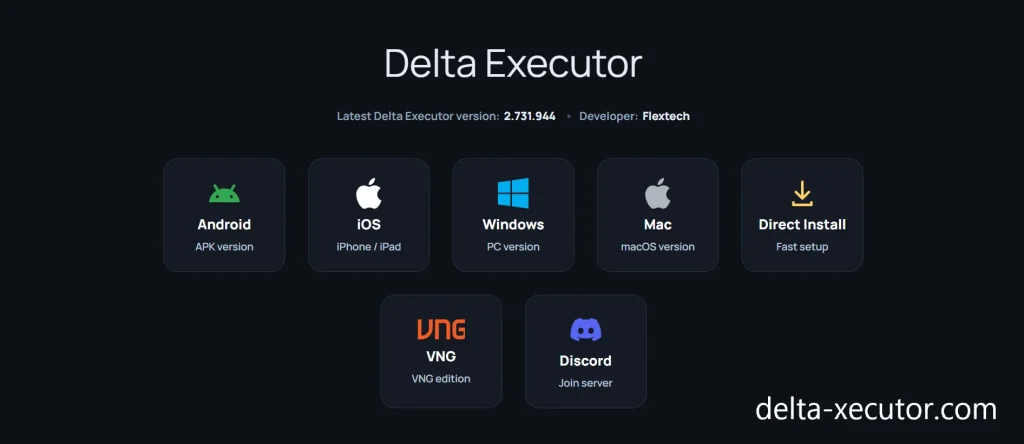
Step 1 — Download and Install Delta Executor
Before generating a key, make sure Delta Executor is installed on your device with the latest available version.
- If Delta Executor is not already installed, download the correct version for your device and complete the installation process.
- Before installing Delta Executor, uninstall the existing Roblox application from your Android device.
- Removing the previous installation can help prevent conflicts and provide a cleaner setup process.
- Download and install the latest version of Delta Executor after removing the old Roblox installation.
- Android users: Install the Delta Executor APK version.
- iPhone and iPad users: Install the Delta iOS version using the supported iOS installation method.
- Once the installation is complete, open Delta Executor to begin the key generation process.
Note
Always download the latest Delta Executor version before generating a key. Older Delta versions may fail verification if the key system no longer supports them.
Step 2 — Open Delta Executor and Request a Key
- Launch Delta Executor after the installation has finished.
- During the first startup, Delta Executor performs its initial loading process before displaying the key verification screen.
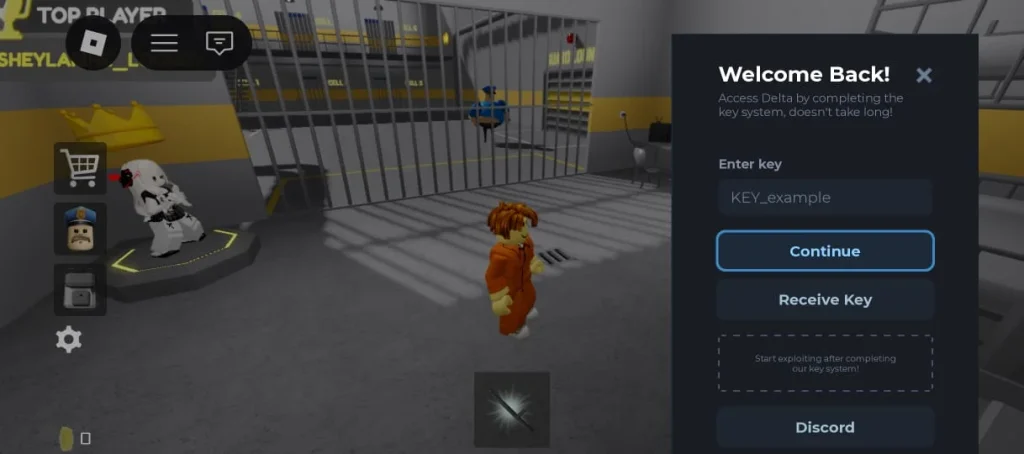
- If you do not have a key, tap the Receive Key button located on the Delta key verification screen.
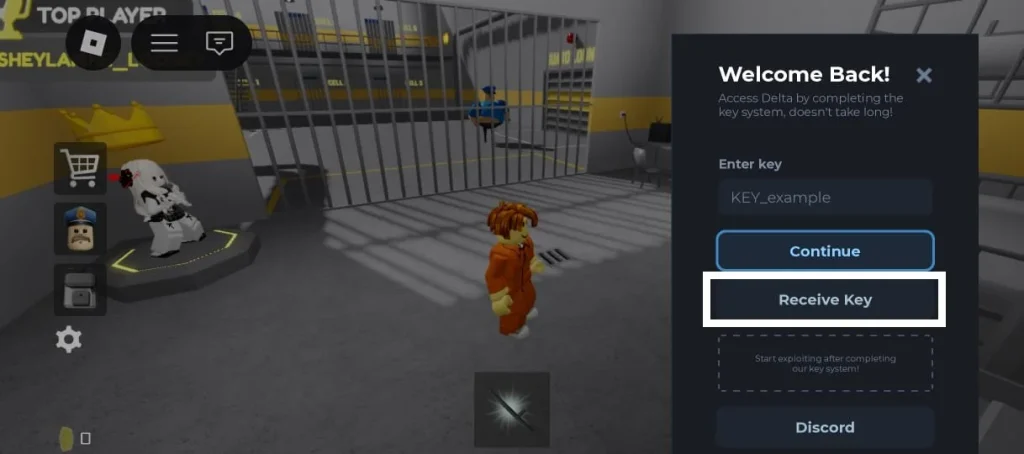
- After tapping Receive Key, Delta automatically generates the key verification link, copies it, and opens it in your device’s browser.
Step 3 — Complete Delta Key Verification
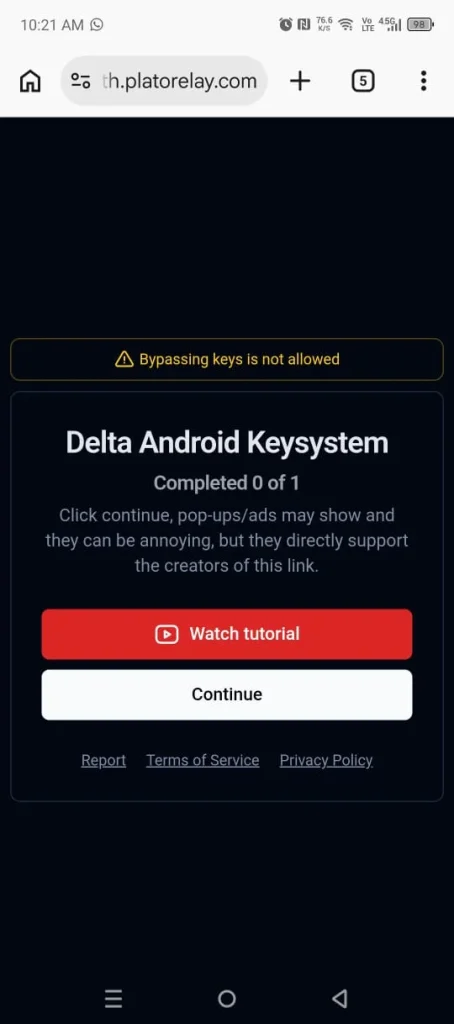
- Tap Continue to begin the Delta Key verification process. This may trigger an advertisement so close that page.
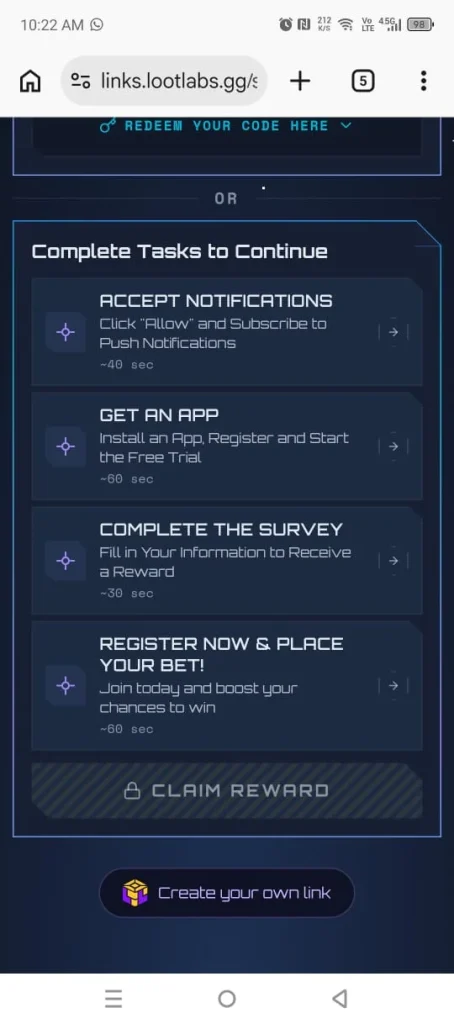
- The Delta key page will display the checkpoints required for you to complete.
- Depending on the verification provider, these may be hosted through services such as LootLabs, LootLink, or Linkvertise.
- The number of checkpoints is not always the same.
- Some sessions require only two verification steps, while others may require three or more before your key is generated.
- Complete the checkpoints to claim your reward.
Step 4 — Create your Delta Key
- Depending on the session, you may be asked to visit a webpage, view an advertisement, watch a video, visit an online store, or complete another required verification action.
- Once a checkpoint is completed successfully, the Delta Key System marks it as finished and allows you to proceed to the next one.
- Continue until all required checkpoints have been completed.
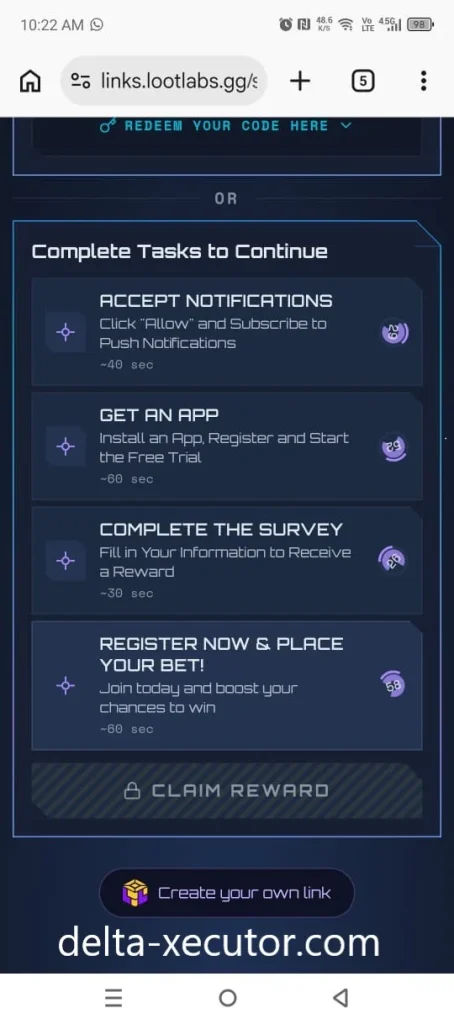
- After the final checkpoint is verified, you can claim your reward. Tap it to obtain your Delta key for Android or iOS.
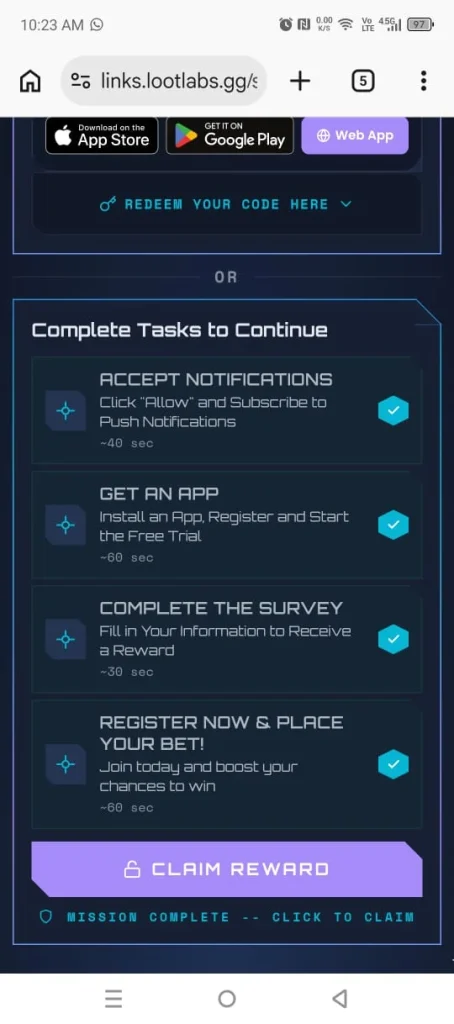
Step 5 — Copy Your Delta Executor Key
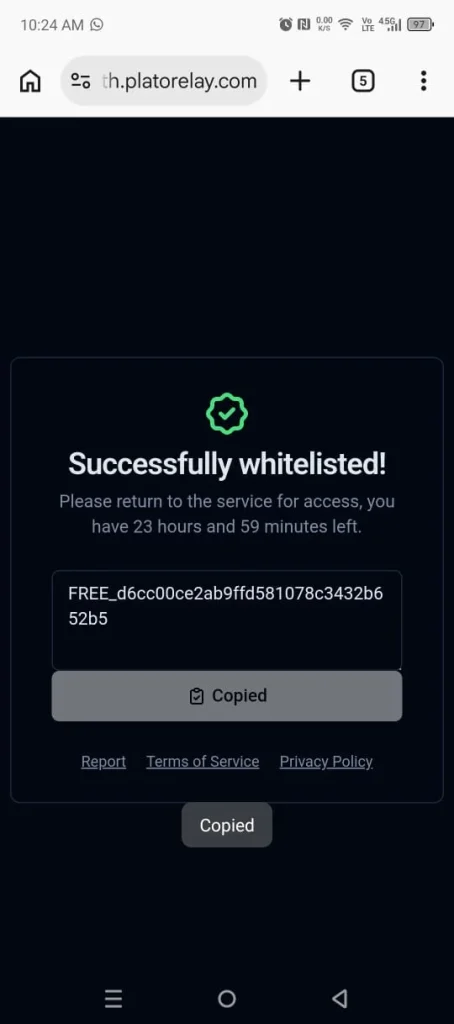
- After tapping Claim Reward, your Delta Executor Key will appear.
- Tap Continue to create your Delta Executor Key that is valid for 24 hours.
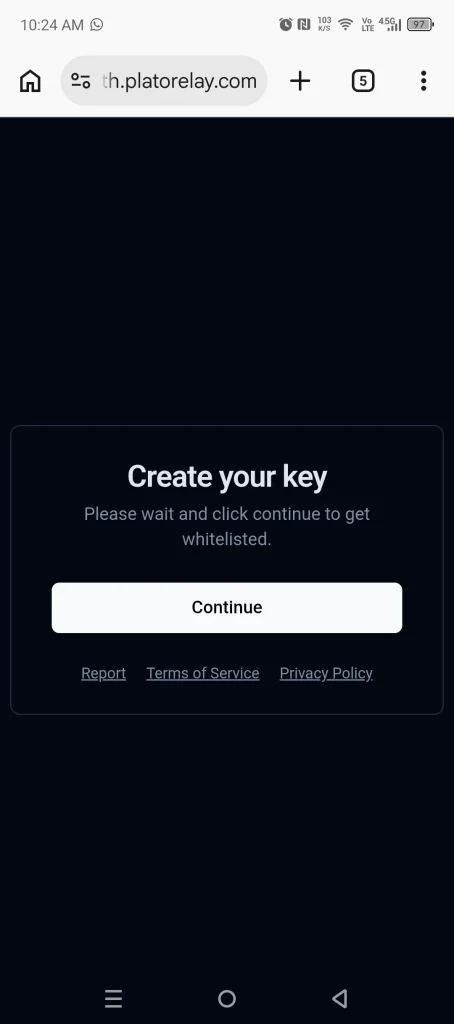
- Tap Copy to save the generated key to your device’s clipboard.
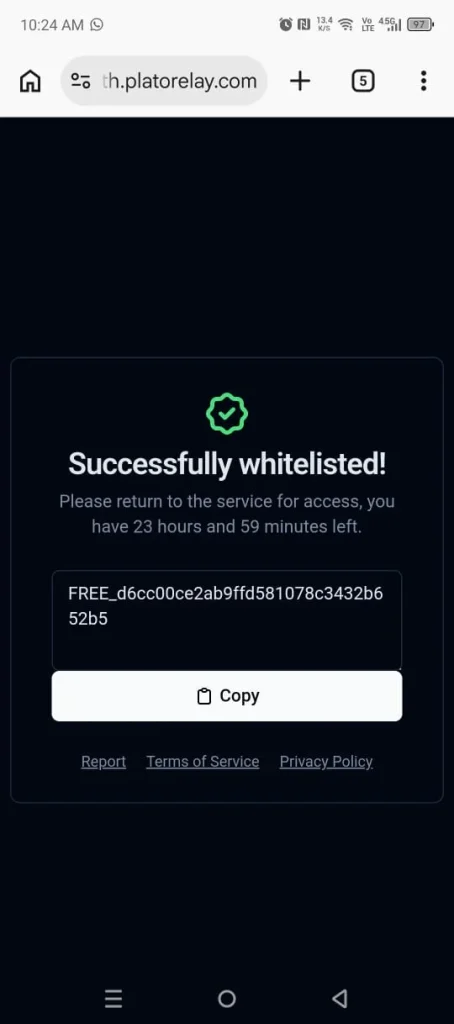
- Keep the browser page open until the key has been successfully entered into Delta Executor.
Note
Do not manually edit the generated key or add spaces when copying it. The code must be entered exactly as provided for activation to succeed.
Step 6 — Paste the Key and Activate Delta Executor
- Return to Delta Executor after copying the generated key.
- When the Delta screen appears, tap the key field and paste the copied Delta code.
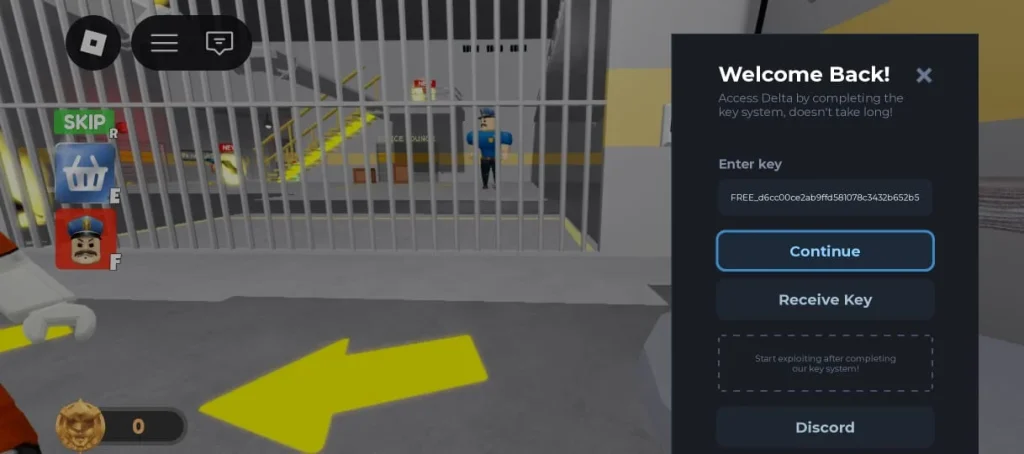
- Tap Continue to submit it for validation.
- Once accepted, the key screen closes and Delta Executor becomes ready for script execution.
FAQs
What Happens When a Delta Executor Key Expires?
Once a key expires, it can no longer authorize access or run Lua scripts. You’ll need to start a new verification session through Receive Key and generate a fresh key, as expired keys cannot be renewed or extended.
Can You Use the Same Delta Key on Multiple Devices?
A Delta key is intended for the device and verification session used to generate it. For reliable activation, generate a separate key on each device and complete the process using the same browser where it was started.
Why Is the Delta Key Verification Page Not Loading?
The verification page may fail to load because of connection issues, ad blockers, VPNs, browser restrictions, or temporary server problems. Try opening the link in Chrome on Android or Safari on iOS, allow cookies and JavaScript, and retry later if the service is unavailable.
Why Does Delta Key Verification Keep Redirecting or Looping?
Verification may loop if the browser session is interrupted or a checkpoint fails to register. Avoid refreshing, closing tabs, or switching browsers during the process. If the problem continues, request a new verification link and start again.
Why Is My Delta Executor Key Invalid?
A key may be rejected if it has expired, was copied incorrectly, belongs to a different verification session, or the required checkpoints were not completed successfully. Generate a fresh key if necessary and enter it exactly as provided.