
Delta Executor APK v2.735.1138 is the latest Android version of Delta Executor Mobile.
This Delta Executor Mobile tutorial covers how to download, install, activate, update, and troubleshoot Delta Executor on an Android phone or tablet without a computer.
If this is your first time installing Delta Executor on Android, download the APK and install it directly on your device.
You don’t need to install Roblox separately. Once Delta is installed, open it and Roblox will launch automatically.
If you are updating an existing installation, uninstall the old Roblox app first to prevent installation conflicts, then download and install the latest Delta Executor APK.
Delta Executor APK
An APK (Android Package Kit) is the file format Android uses to install apps directly on an Android device.
| Name | Delta Executor |
|---|---|
| Version | v2.735.1138 |
| Platform | Android |
| File Type | APK |
| Price | Free |
How to Download Delta Executor APK on Android
Downloading the Delta Executor APK v2.735.1138 for Android only takes a few steps.
Step 1: Tap the Delta Executor APK Download Button
- Tap the Download Delta Executor APK v2.735.1138 button above to start downloading the APK file on your Android mobile.
Step 2: Wait for the Delta Executor APK to Download
- After tapping the download button, the Delta-2.735.1138.apk file will begin downloading to your Android device.
- Wait until the APK download is complete before opening the file.
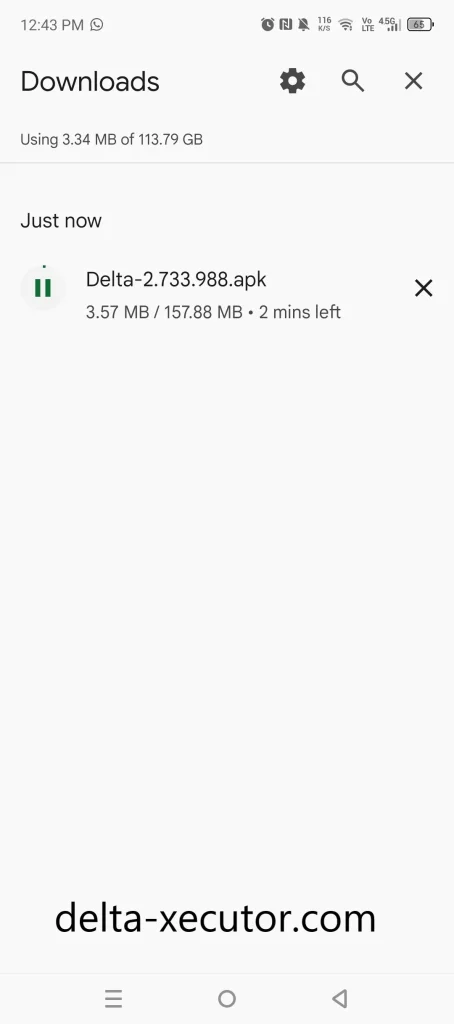
Step 3: Open the Downloaded Delta Executor APK
- Once Delta download is complete, open your Android Downloads and find the Delta-2.735.1138.apk file.
- Tap Delta-2.735.1138.apk to open the downloaded file and begin the installation process.
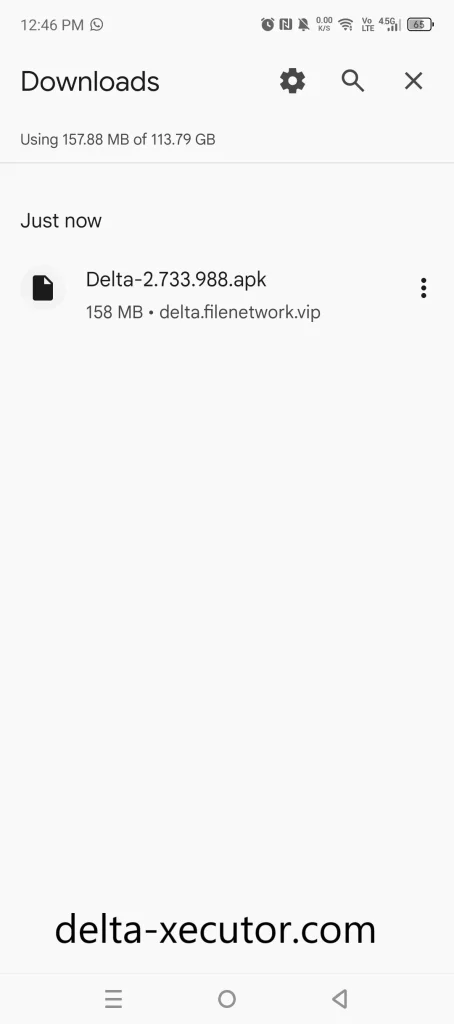
Step 4: Install the Delta Executor APK
After you open Delta-2.735.1138.apk, Android may briefly display Staging app… while preparing the APK for installation.
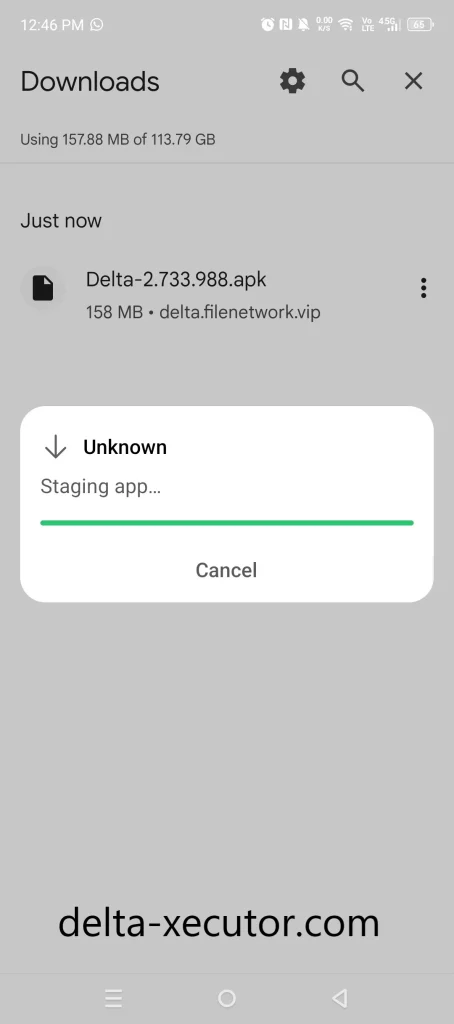
Once the installation screen appears:
- You will see Roblox with the message “Do you want to install this app?”
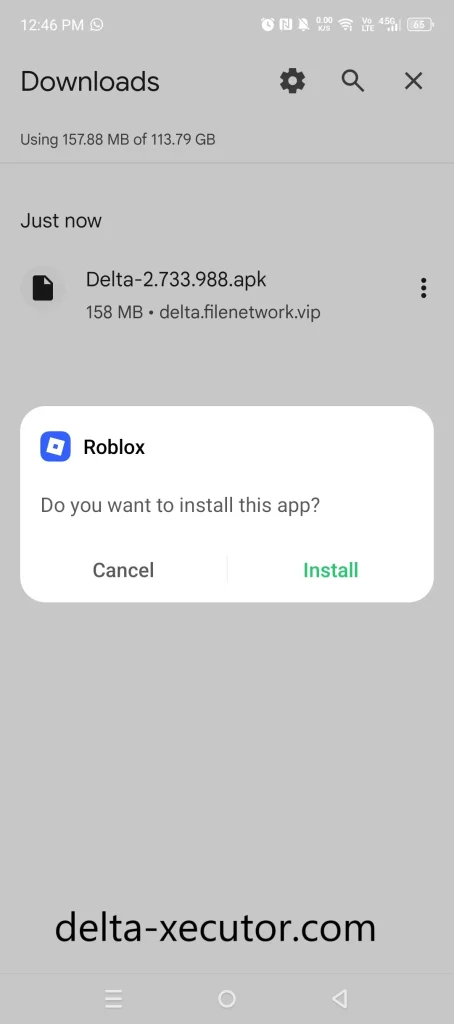
- Tap Install at the bottom of the screen.
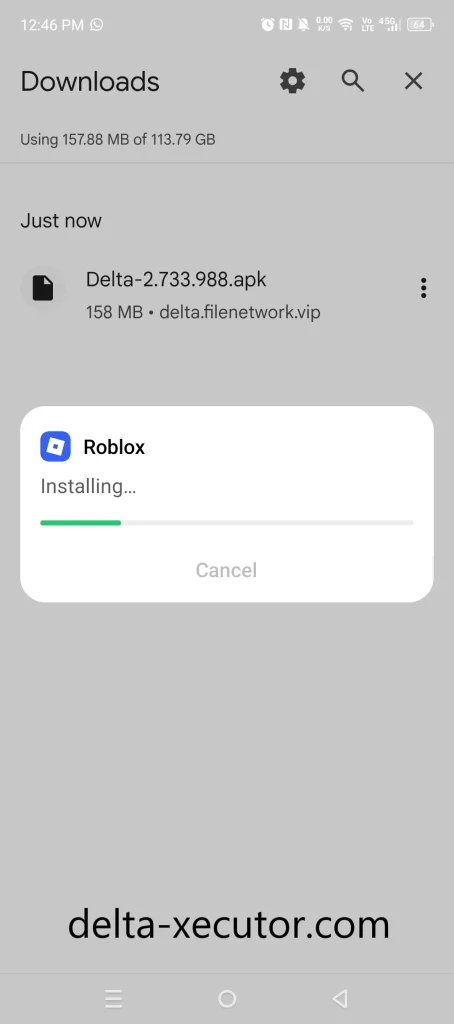
- Android will begin installing the Delta Executor APK. Wait for the installation to finish before continuing.
Step 5: Allow File Access for Delta Executor
After the Delta Executor APK finishes installing, Android may open the All Files Access settings screen.
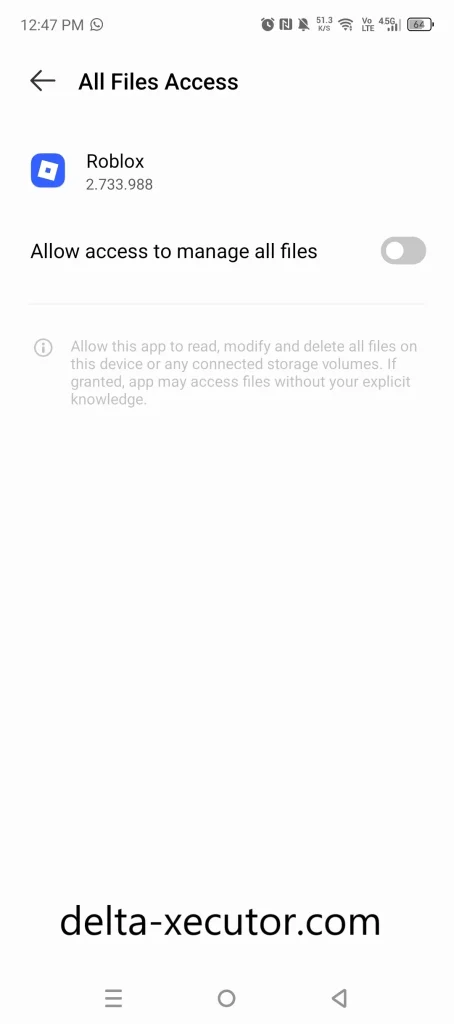
Follow these steps:
- Tap on the switch next to Allow access to manage all files.
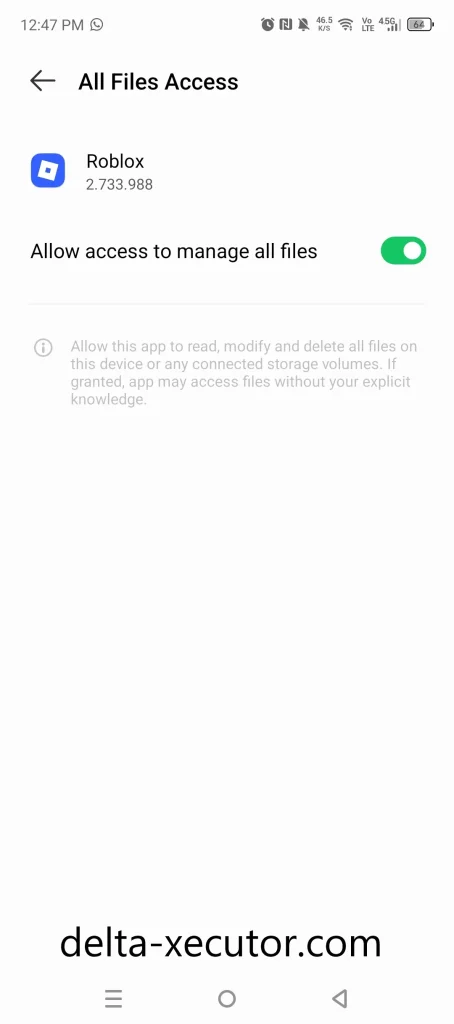
- Once the switch is enabled, return to Delta Executor to continue.
This permission allows the installed Delta Executor Android version to access files on your device.
Step 6: Open Roblox and Confirm Delta Executor Is Installed
After enabling Allow access to manage all files, tap the back button. Roblox will open automatically.
- Sign In to your existing Roblox account or tap Create Account if you are a new Roblox user.
- After signing in, open any Roblox game.
- Look for the Delta Executor icon on the game screen.
- If the Delta icon appears, Delta Executor has been successfully installed on your Android device.
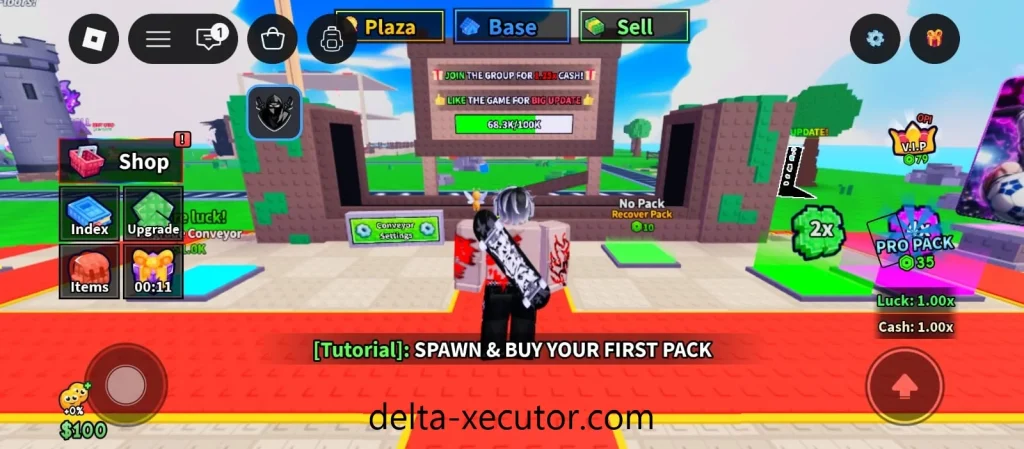
- Tap the Delta icon to open the Delta Executor interface.
How to Activate Delta Executor on Android
After installing Delta Executor, you need a Delta Executor Key before you can start using its script execution features.
- Open a Roblox game and tap the Delta icon. The Delta Executor key screen will appear.
- Tap Receive Key and complete the required verification process to generate your key.
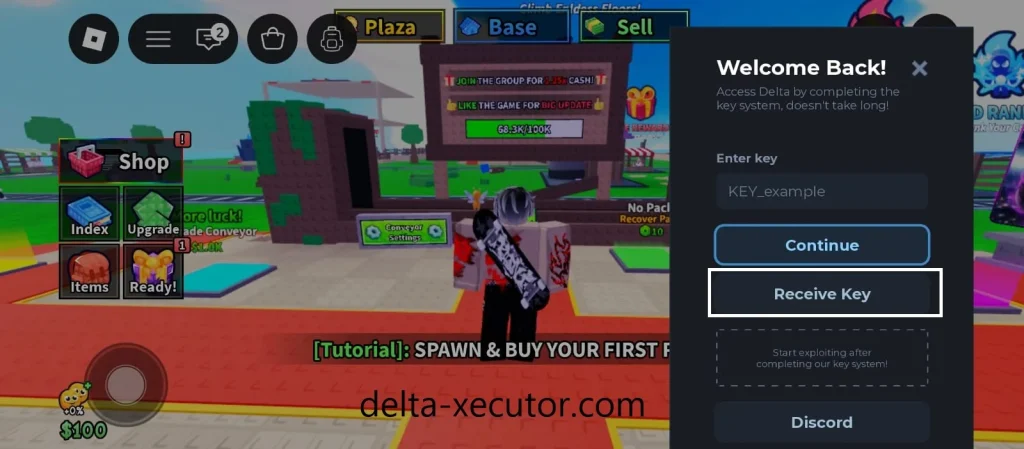
- Once you have the key, paste it into Delta Executor and tap Continue to activate it.
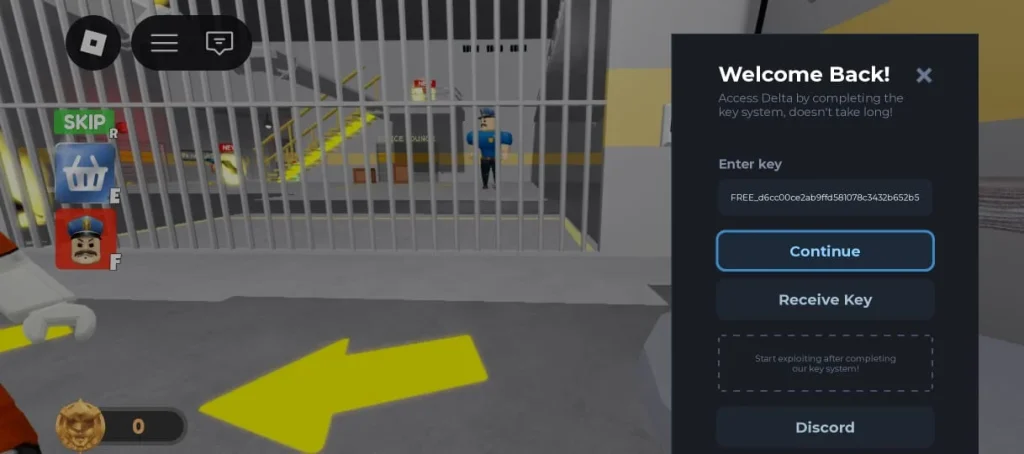
For the complete verification process, follow our Delta Executor Key guide.
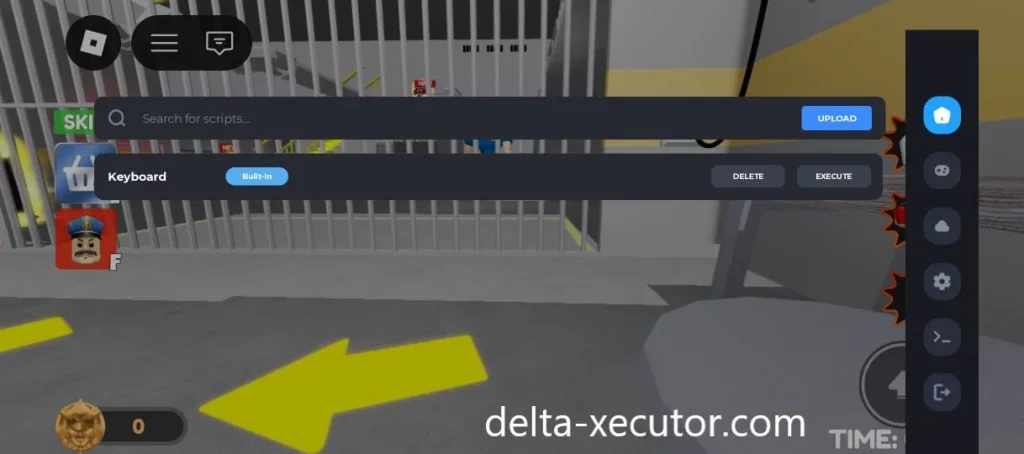
How to Update Delta Executor APK on Android
Delta Executor does not update through the Google Play Store.
When a new Delta Android version is released, you need to replace the older Delta installation with the latest APK.
If you already have Delta Executor installed, follow this Delta update process:
- Check that a newer Delta Executor APK version is available. Compare the version currently installed on your device with the latest version shown on this page. Right now, the latest Android version is v2.735.1138.
- Uninstall the old Roblox installation first. Remove the existing Roblox that came with your older Delta installation. This helps prevent installation conflicts when you install the updated Delta Executor APK.
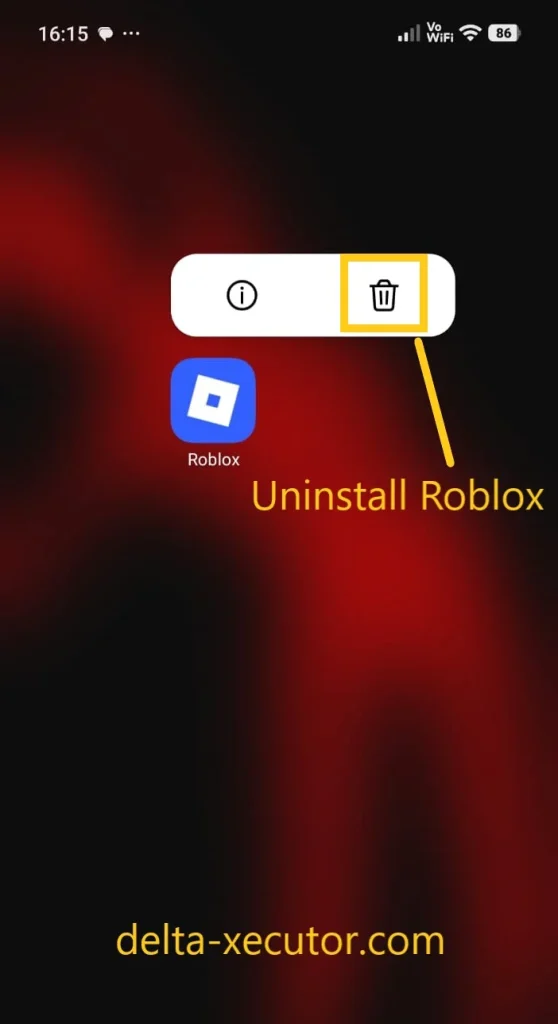
- Return to this Android download page. Use the Download Delta Executor APK v2.735.1138 button at the top of this page to get the latest Android APK.
- Download the latest APK and replace the old version. Once the older Roblox installation has been removed, download the current Delta Executor APK and install it on your Android device.
- Open Delta after the update. Open Delta once the latest APK is installed. Roblox will launch automatically.
- Confirm that Delta is working after the update. Sign in to Roblox, open a game, and check that the Delta icon appears on the game screen. If the icon appears, the latest Delta Executor version has been installed successfully.
- If Delta asks for a key again after updating, generate a valid Delta Executor Key and enter it to activate script execution.
Note
When Delta releases another Android update, you do not need to search for a different installation method. Remove the older Roblox installation, return to this page, and install the latest Delta Executor APK.
Delta Executor APK Says “App Not Installed”
If Android shows an “App not installed” message while installing the latest Delta Executor APK, an older Delta/Roblox installation may still be on your device and can cause an installation conflict.
- Uninstall the existing Roblox installation that was installed with the older Delta version.
- Open your Downloads folder and make sure you are using the latest Delta-2.735.1138.apk file.
- Tap the APK again and complete the installation.
- Once installation finishes, open Delta and Roblox should launch automatically.
Delta Executor Stops Working After a Roblox Update
A Roblox update can make the currently installed Delta version outdated or incompatible.
If Delta stops opening or working after Roblox updates, check whether a newer Delta Executor Android version has been released.
- Check the latest Delta Executor APK version shown on this page.
- If a newer version is available, uninstall the old Roblox installation.
- Get the latest delta executor apk download.
- Open Delta again and check whether the Delta icon appears after you enter a Roblox game.
Delta Executor Icon Does Not Appear in Roblox
If Roblox opens successfully after installing the Delta Executor APK but the Delta icon does not appear inside a game, first confirm that you installed Roblox through the latest Delta APK rather than installing Roblox separately.
- Close Roblox completely.
- Confirm that the latest Delta Executor APK is installed on your Android device.
- Open Delta again and let it launch Roblox automatically.
- Sign in to Roblox and join a game.
- Wait for the game to finish loading and check for the Delta icon on the screen.
- If you still have an older Delta/Roblox installation, remove it and reinstall the latest Delta Executor APK using the installation process above.
- If the Delta icon appears after entering the game, the Android installation has loaded correctly.