
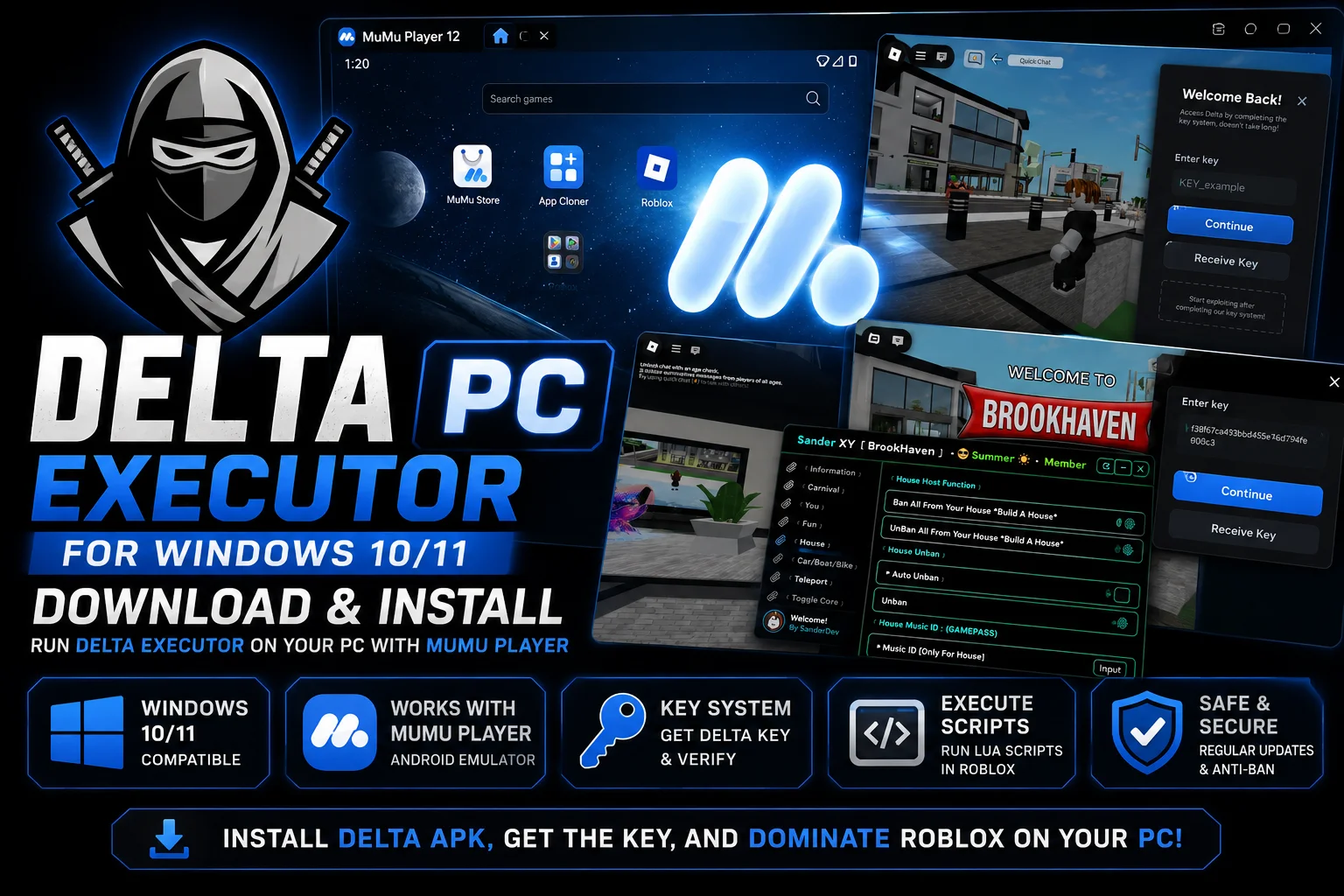
Delta Executor for PC lets Windows 10 and 11 users run Roblox Lua scripts on a computer by running the Delta Android APK through an emulator such as MuMu Player.
Since Delta currently has no native Windows version, MuMu Player creates the Android environment needed to install and run the Delta APK on a Windows PC.
In this guide, you’ll learn how to download and install Delta Executor on PC with MuMu Player, get the Delta key, and run Roblox Lua scripts on Windows.
How to Download Delta Executor on PC
To run the Delta Android APK on Windows, you first need an Android emulator such as MuMu Player.
We use MuMu Player because it lets the Delta APK and Android version of Roblox run together inside the same emulated Android environment.
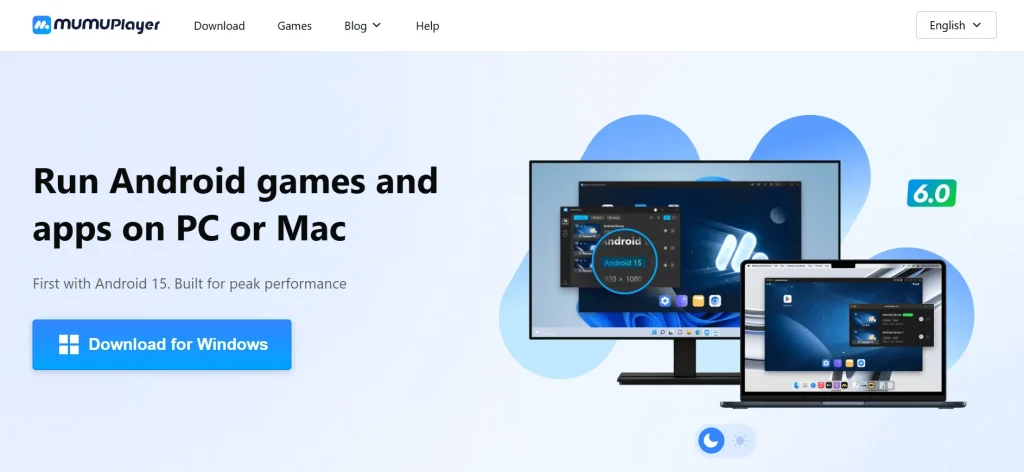
Step 1: Download MuMu Player for Windows
- Go to the official MuMu Player website and download the latest MuMu Player version for Windows.
- Choose the Windows installer, then wait for the setup file to finish downloading to your PC.
Step 2: Install MuMu Player on Your PC
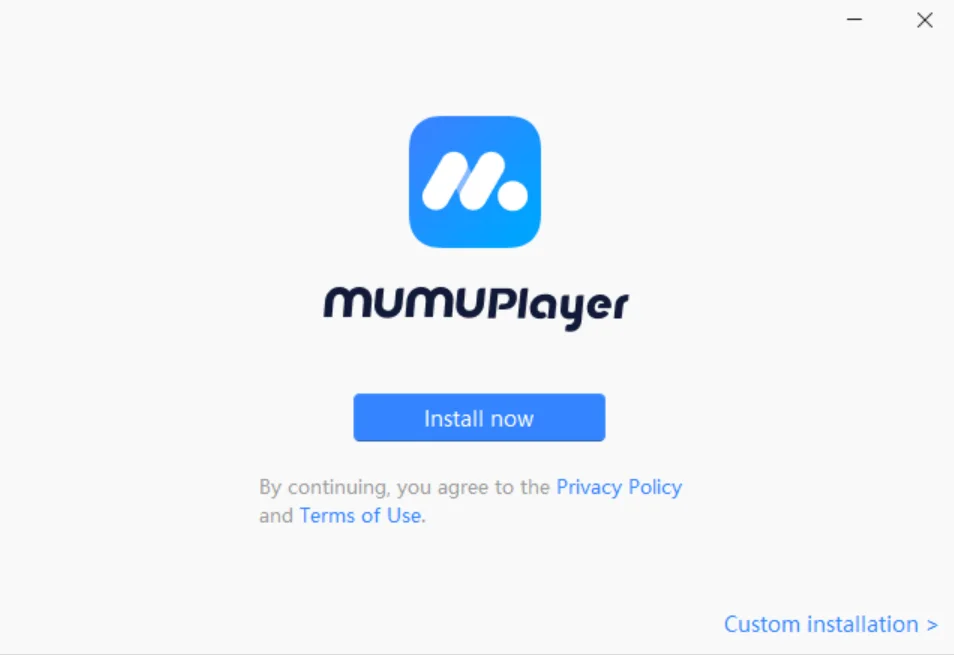
- Open the MuMu Player installer from your Downloads folder and follow the on-screen instructions.
- Wait for the installation to complete before launching the emulator.
- If MuMu Player is not installed, the Delta Executor APK cannot run on Windows because the APK requires an Android environment.
Step 3: Configure MuMu Player for Your PC
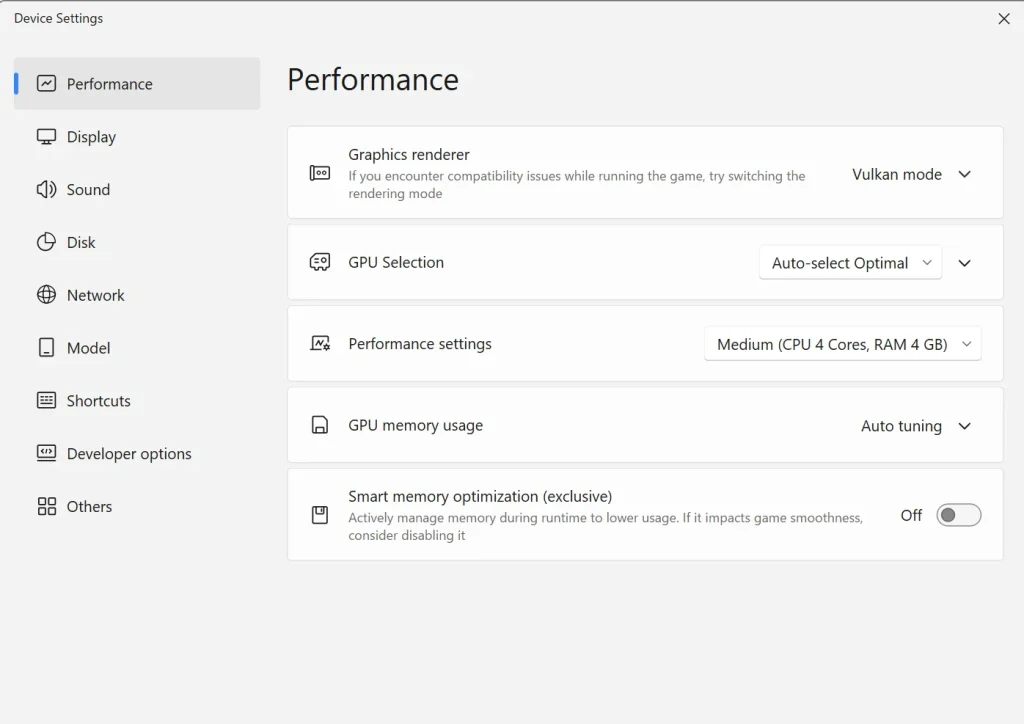
- Launch MuMu Player and open its performance settings before installing Delta Executor.
You can adjust:
- CPU allocation
- RAM allocation
- screen resolution
- graphics settings
Use settings that match your PC hardware. A higher-spec computer can use more CPU and RAM, while a lower-end PC may run more smoothly with reduced settings.
If MuMu Player feels slow or begins to lag, lower the graphics, resolution, CPU, or RAM settings until the emulator becomes stable.
Lower settings can often make the emulator run much smoother on lower-end hardware.
The best part about Mumu player is that it gives you an Android environment on your computer.
It also uses enhanced graphic technologies designed to provide a more stable gaming experience with fewer crashes, black screens and performance issues.
With Mumu Player 6.4, you can also get access to Android 15 along with improved performance and a smoother overall emulator experience.
Once you finished configuring everything, save your settings and then hit play to run the emulator. You’ll now see the Android interface running directly on your computer.
Step 4: Download the Delta Executor APK
- Open a browser inside MuMu Player and go to the Delta Executor download page.
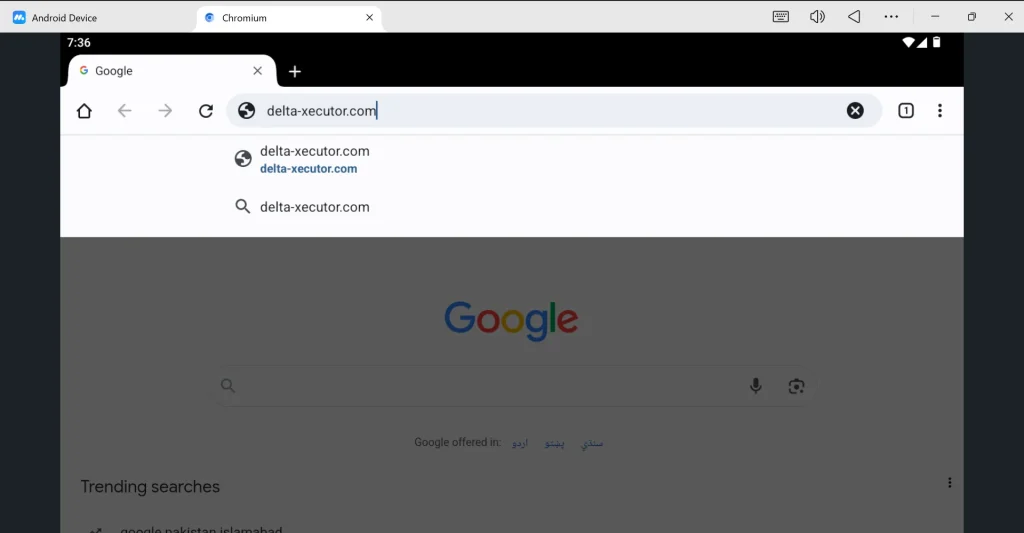
- Download the latest Delta Executor APK.
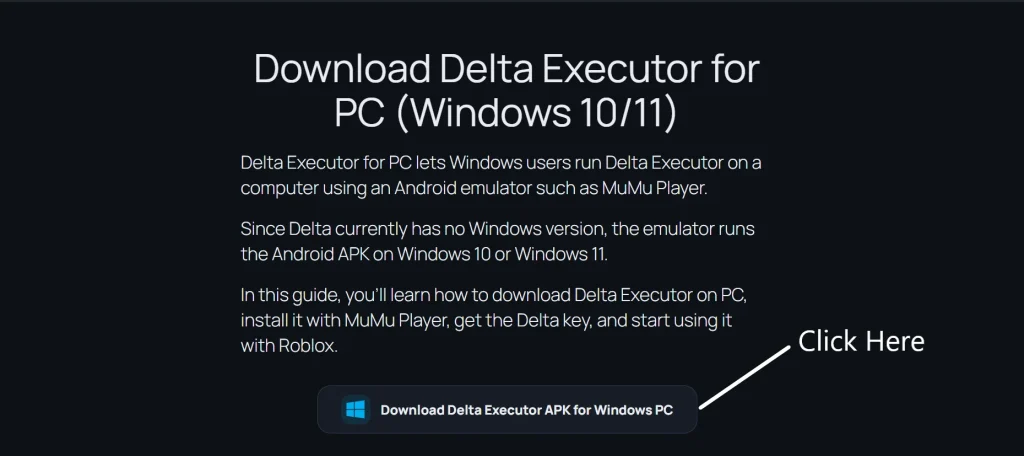
- Wait for the APK file to finish downloading before starting the installation.
Step 5: Install Delta Executor on MuMu Player
- Open the downloaded Delta Executor APK in MuMu Player.
- MuMu Player will begin installing the APK automatically.
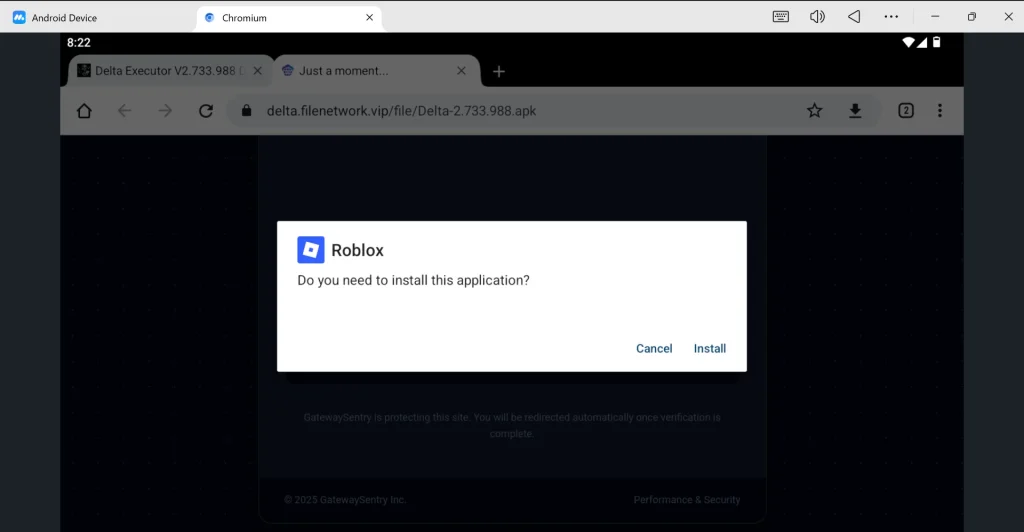
- During setup, you may see an “All files access” screen.
- Turn on “Allow access to manage all files” to continue.
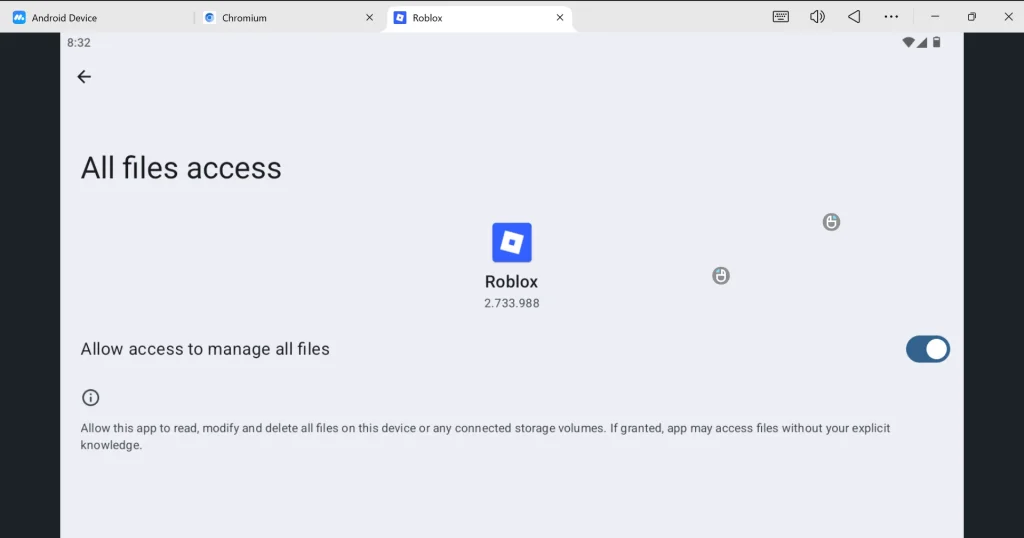
- Press the Back button after enabling the permission.
- Roblox will open automatically inside MuMu Player.
Step 6: Open Roblox and Launch a Game
- Open Roblox inside MuMu Player.
- Sign in to your Roblox account.
- Choose the game you want to play and launch it.
- Once the game loads, you should see the Delta icon on the screen.
- Click the Delta icon to open the executor.
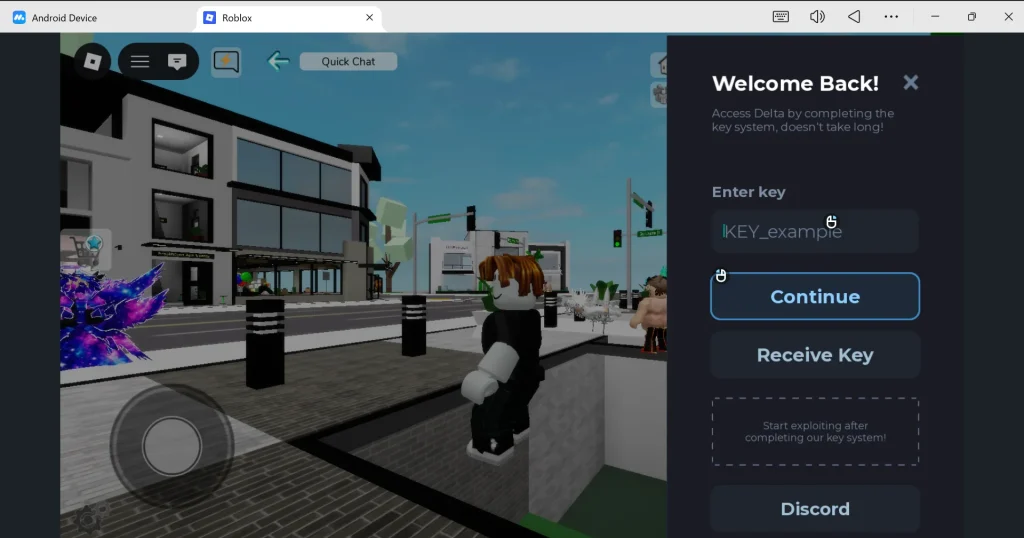
Delta will ask for a key before you can start using its script execution features.
Step 7: Get and Enter the Delta Executor Key
Before you can use Delta Executor, you need to activate it with a Delta key.
- Click Receive Key in the Delta window.
- Complete the key process to get your Delta Executor key.
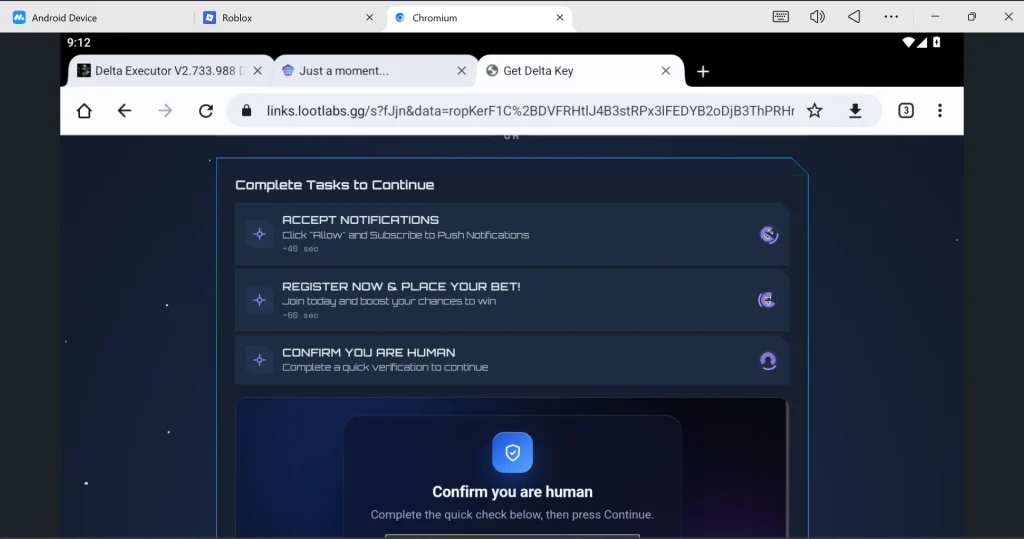
- Copy the key and return to Delta.
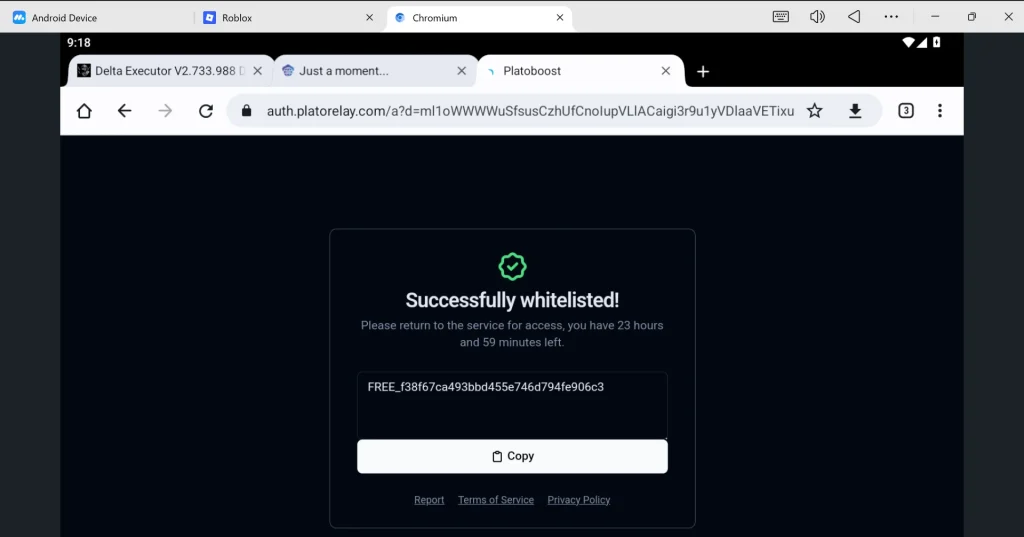
- Paste it into the Enter key box.
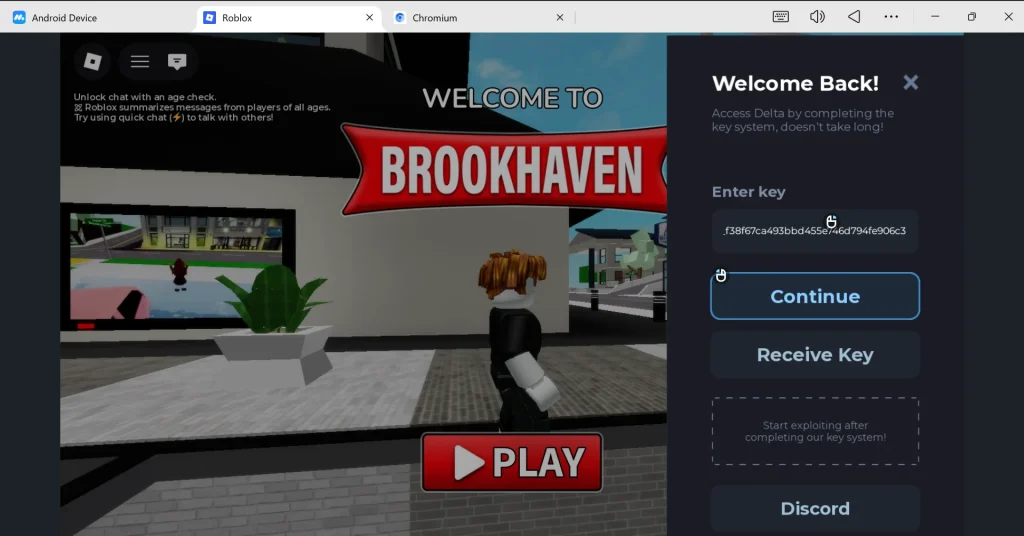
- Click Continue to activate Delta Executor.
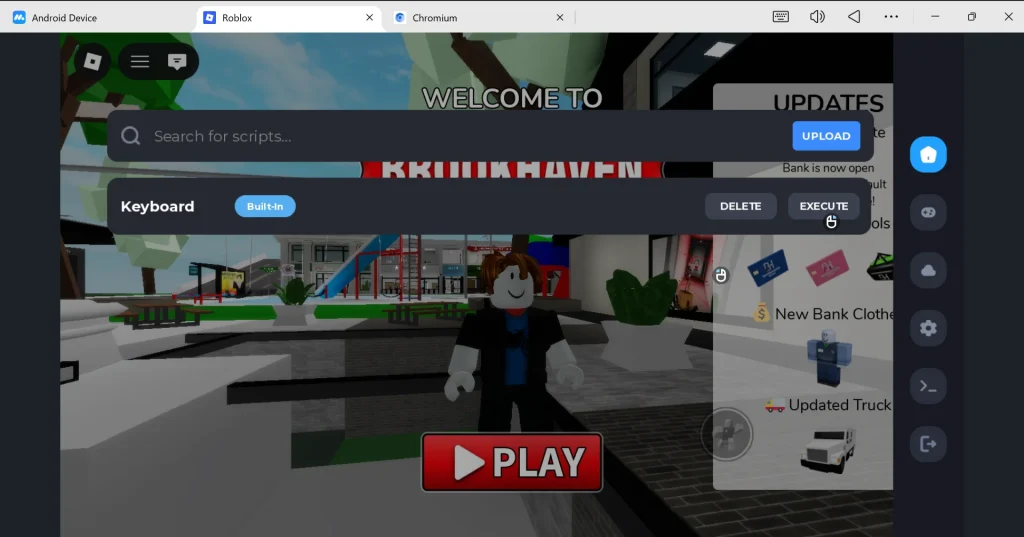
Once the key is accepted, you’re all set. Now, simply select a script from Delta’s Script library or paste your own Lua script and hit Execute.
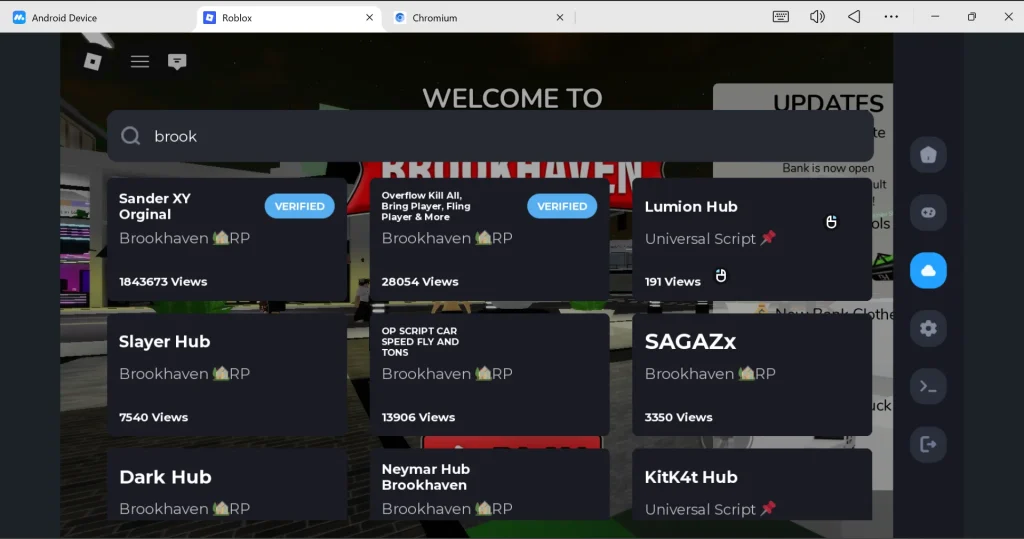
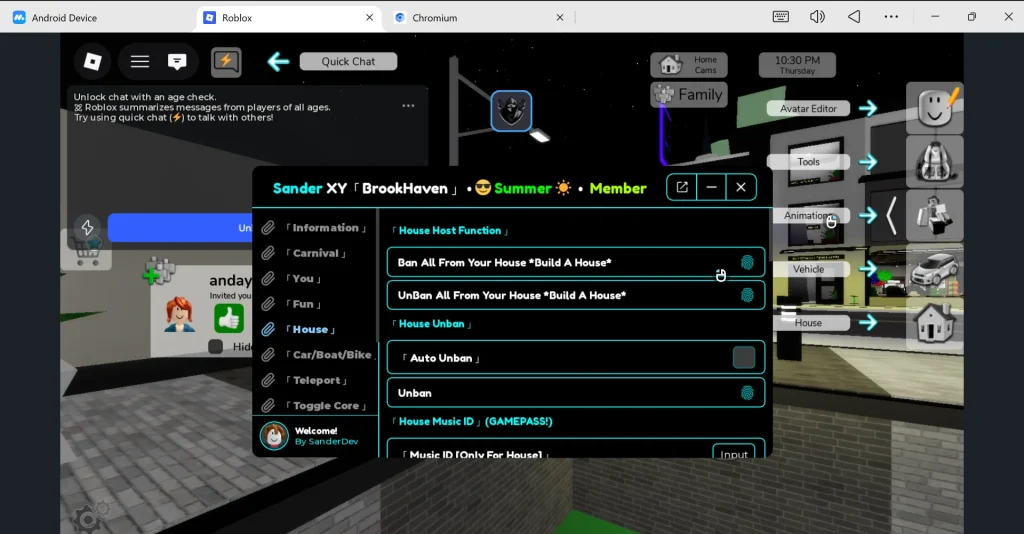
The script will start running in the game, letting you automate repetitive tasks such as farming enemies in Blox Fruits, collecting resources in Grow a Garden, fishing in Fisch, collecting pets and rewards in Pet Simulator, or using ESP and movement features in games such as 99 Nights in the Forest, depending on what the script is designed to do.
Requirements to Run Delta Executor on PC
Frequently Asked Questions
Can I close MuMu Player after opening Delta Executor?
No. Delta is running inside MuMu Player, so closing the emulator also closes Delta and Roblox.
Does Delta Executor take up PC storage or emulator storage?
The APK and its Android app data primarily use the virtual storage assigned to MuMu Player.
Do I need to download Delta again every time I restart my PC?
No. Once installed in MuMu Player, Delta remains there unless you remove the app, reset the emulator, or reinstall it.
Why does Delta look like the mobile version on my PC?
Because your PC is running the Android APK through MuMu Player rather than a separate Windows edition.
Can I use my keyboard and mouse with Delta Executor on PC?
Yes. MuMu Player translates keyboard and mouse input for the Android environment.
Will changing MuMu Player settings remove Delta Executor?
Normally, changing performance settings such as RAM, CPU, resolution, or graphics does not uninstall the Delta APK.
Why does Delta work on my phone but not on my PC?
Your phone and MuMu Player provide different Android environments, so compatibility and performance can differ.
Does updating MuMu Player automatically update Delta Executor?
No. MuMu Player and Delta are separate applications and have their own updates.
Where is Delta actually running when I use it on Windows?
It runs inside MuMu Player’s virtual Android system, not directly as a Windows program.
Can I move my Delta setup from one PC to another?
Installing MuMu Player on another PC does not automatically transfer the apps and data from your existing emulator.