
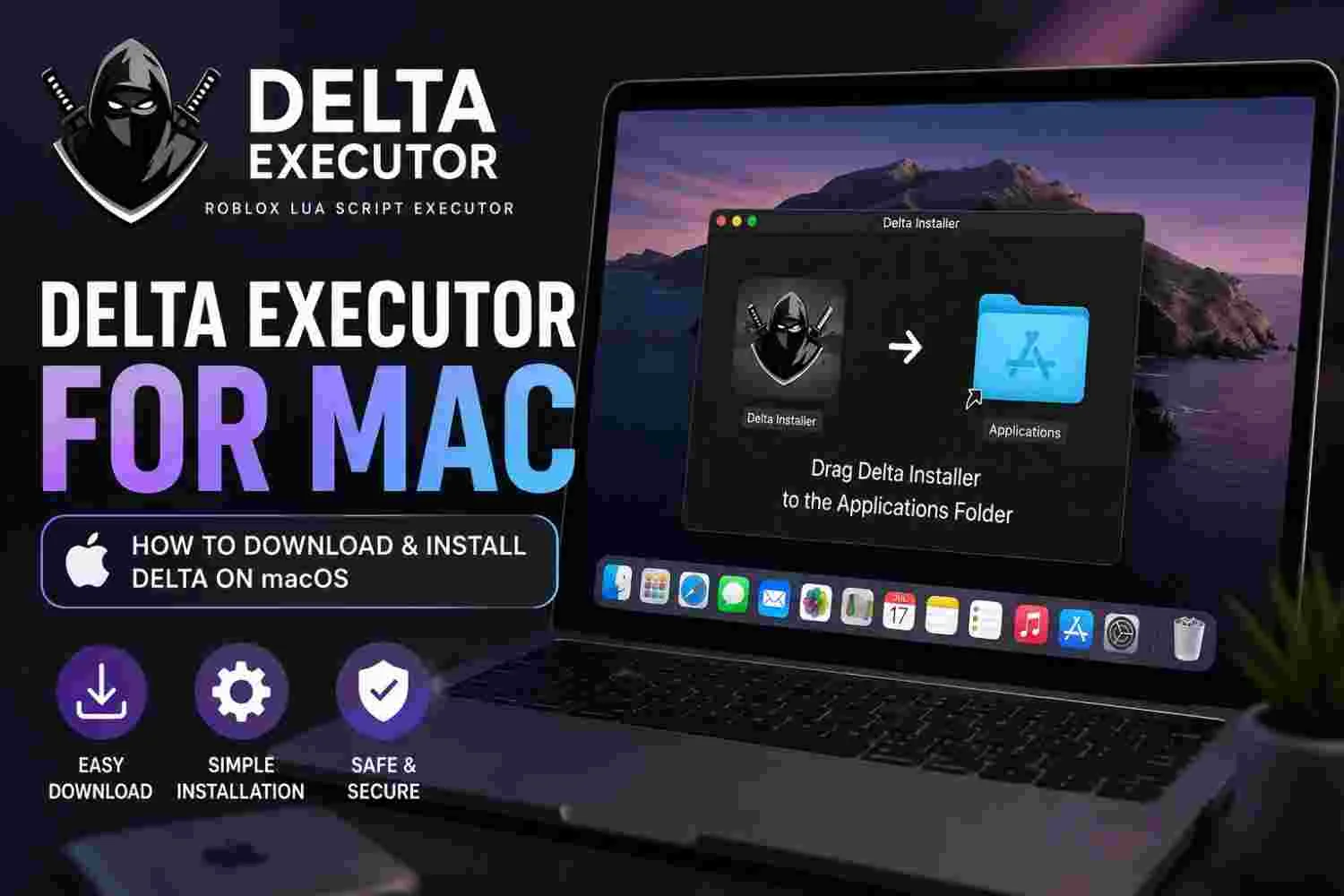
You can install Delta Executor on macOS by downloading the Delta Installer and moving it to the Applications folder.
Click the Download for macOS button below and wait for the installer to download.
Once it finishes, drag Delta Installer into the Applications folder, open it, and click Install Delta.
Next, install the required Developer Tools, then click Install Delta again to install Delta Executor for Roblox on your Mac.
How to Install Delta Executor on Mac
Installing Delta Executor on a Mac involves downloading the macOS installer, moving Delta Installer to Applications, installing the required Developer Tools, and then running the Delta installation.
Step 1. Download Delta Installer for macOS
- Click the Download Delta for macOS button above to download the Mac installation file.
- Wait for the download to finish before opening the file.
- Your browser will normally save it to the Downloads folder unless you have selected a different download location.
Step 2. Move Delta Installer to the Applications Folder
- Open the downloaded file. When the Delta installation window appears, drag Delta Installer into the Applications folder.
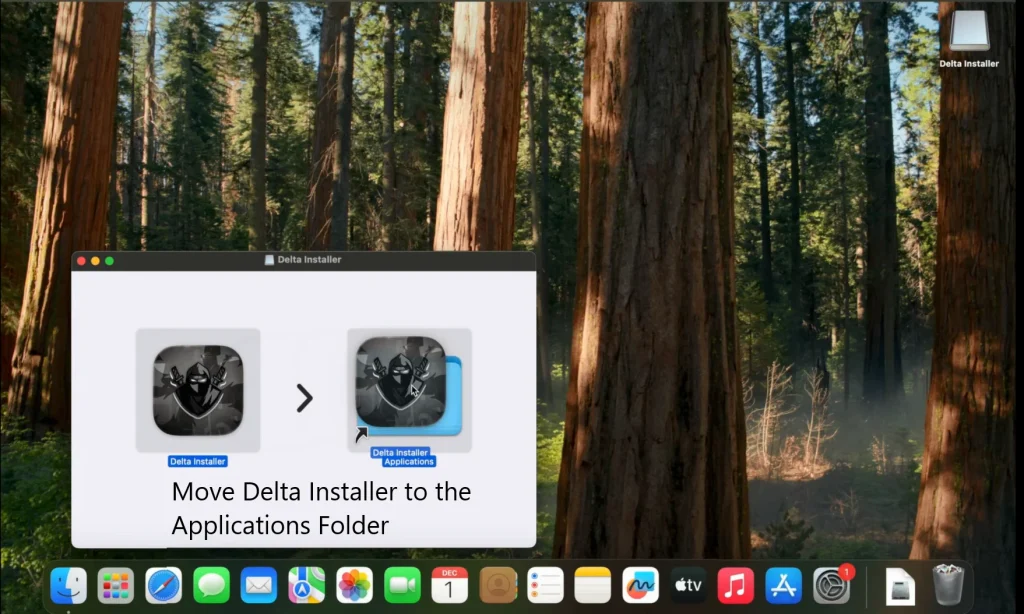
- Moving the installer to Applications places it with the other apps installed on your Mac and prepares it for the next step.
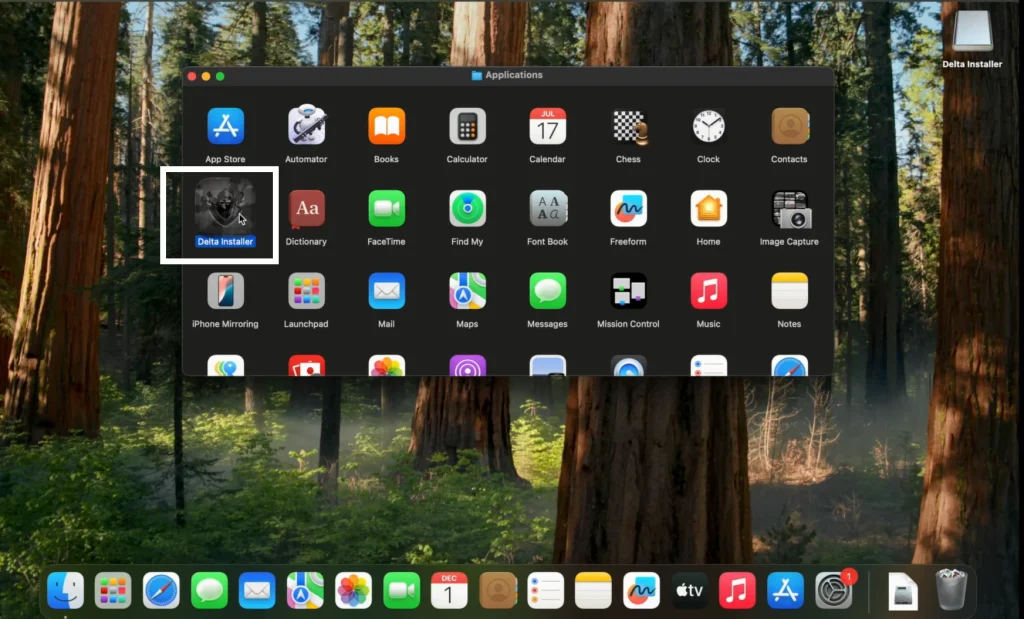
Step 3. Open Delta Installer
- Open the Applications folder and launch Delta Installer.
- Then click Install Delta to start the setup process.
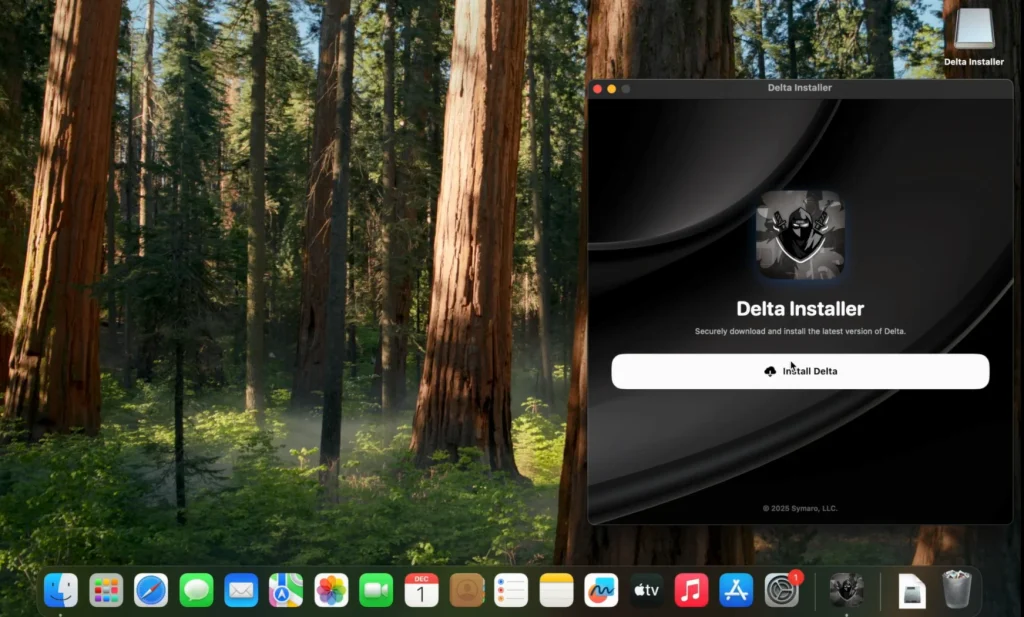
Step 4. Install the Required Developer Tools
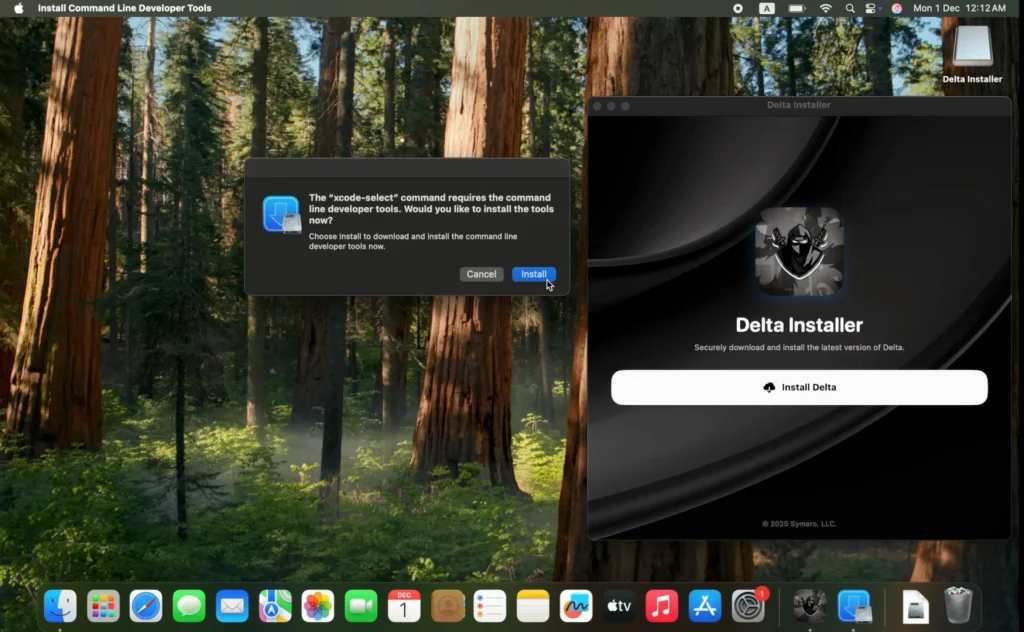
- During setup, install the Developer Tools required by the installation process.
- Wait until the Developer Tools installation finishes before continuing.
- Apple provides its Command Line Tools as a separate macOS developer-tools package, so this is a legitimate macOS component rather than part of Delta itself.
5. Click Install Delta Again
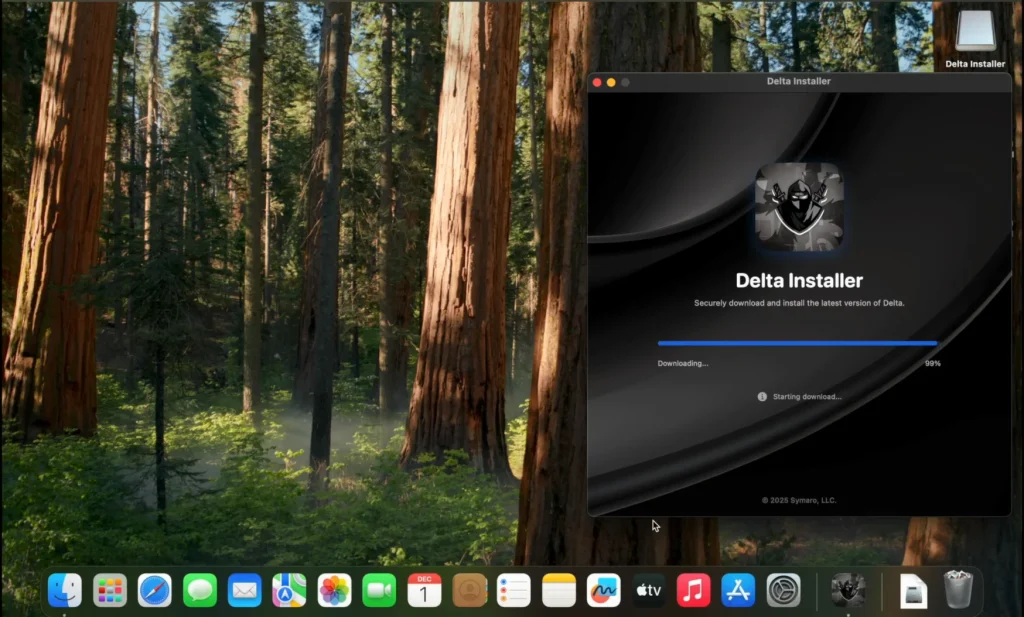
- Return to Delta Installer after the Developer Tools finish installing and click Install Delta again.
- Delta Installer will then proceed with the Delta Executor installation on your Mac.
Step 6. Complete the Installation
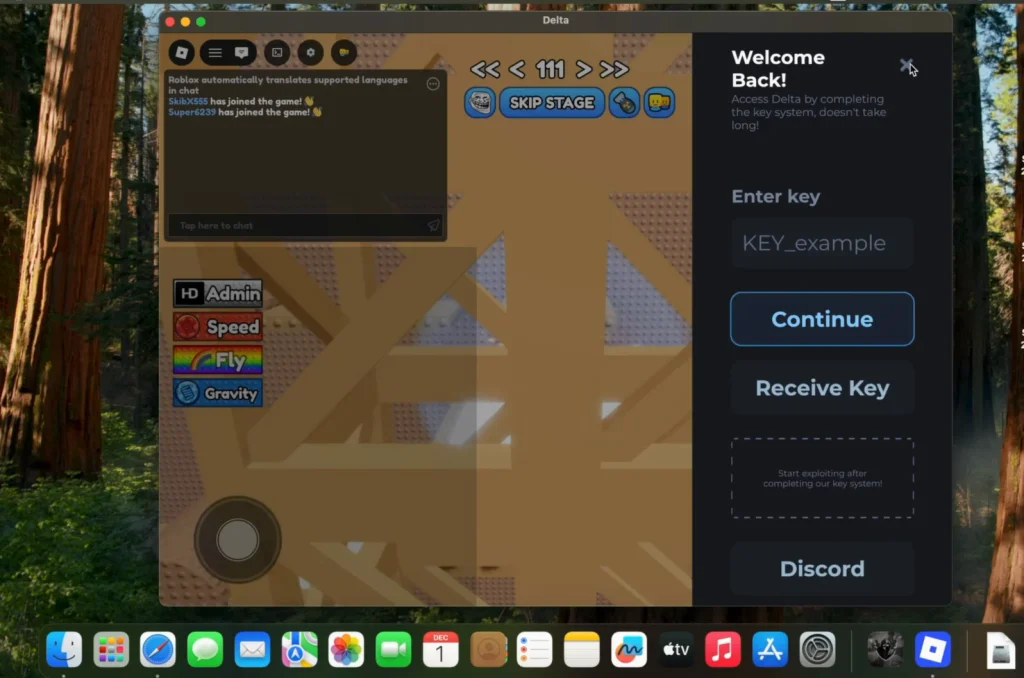
- Wait for Delta Installer to finish. Once the installation completes, Delta Executor is installed on macOS and you can launch it, then complete the Delta Key process when prompted.
Delta Executor Mac Compatibility
The current Delta Executor installation method supports Apple Silicon Macs with M1, M2, and M3 chips from 2020 and later.
Why Delta Executor Requires Developer Tools on Mac
Developer Tools are a required dependency in Delta Executor’s macOS installation process.
Delta Installer relies on them to complete the setup before Delta can be installed on the Mac.
When Delta Installer asks for Developer Tools, click Install and let the installation finish.
Don’t skip this step because Delta may otherwise fail to install correctly or crash.
After Developer Tools finish installing, click Install Delta to continue and complete the Delta Executor installation.
Delta Executor Not Working on Mac
Delta Executor may fail to install, crash after installation, or not open correctly.
Before troubleshooting, make sure you completed the installation process above and that your Mac meets the compatibility requirements.
Delta Executor Not Installing
If the installation stops before completion, check whether Developer Tools finished installing successfully before you ran the final Delta installation.
If Developer Tools fail to install, open System Settings → General → Software Update and check for available updates.
Apple recommends using a version of its Command Line Tools that is compatible with the installed macOS version.
Delta Executor Crashing on Mac
If Delta installs successfully but crashes when you launch it, restart your Mac and try opening Delta again.
If the crash continues, reinstall Delta using the installation process above.
This replaces an incomplete or failed installation rather than repeating individual setup steps here.
Delta Executor Not Opening
If you click Delta and nothing opens, check whether macOS has blocked the app from launching.
Open System Settings → Privacy & Security and look for a message stating that the application was blocked.
If macOS provides an Open Anyway option for the app and you trust the downloaded file, you can use it to approve the launch.
Frequently Asked Questions
Does Delta Executor for Mac Need an Emulator?
No. Delta Executor can be installed directly on supported Macs using its macOS installer, so an Android emulator is not required.
Unlike the PC version of Delta Executor, which is designed for Windows, the Mac version uses a dedicated macOS installer. It also does not require an IPA sideloading tool like the iOS version.
Does Delta Executor Work on Intel or M4 Macs?
The installation method covered in this guide is confirmed for Apple Silicon Macs with M1, M2, and M3 chips from 2020 and later.
Intel Macs and Macs with M4 chips are outside the compatibility range covered by this guide, so their support is not confirmed here.
Do I Need to Use Terminal Commands to Install Delta on Mac?
No manual Terminal commands are required for the installation method covered in this Delta MacOS guide.
Download the DMG, move Delta Installer to Applications, open it, and follow the installer.
The installer may ask macOS to install the required Command Line Developer Tools, but you do not need to manually enter commands in Terminal.
Is Delta Executor for Mac Free?
Yes. Delta Executor for macOS is available as a free download, and the Mac installer does not require a purchase.