
Delta iOS v2.735.1138 is the latest version available for iPhone and iPad.
If you want to know how to download Delta Executor on iPad or iPhone, download the Delta IPA from this page and install it using KSign without a computer or Sideloadly with a PC or Mac.
This guide covers the complete iOS setup process, including downloading the IPA, signing and installing the app, and activating Delta Executor with a key.
What Is Required to Use Delta iOS Executor?
To install and use Delta Executor iOS on an iPhone or iPad, you need:
- Delta IPA — the iOS app file you will install by clicking the above download button.
- A signing method — KSign for installation without a computer or Sideloadly when using a PC or Mac.
- A valid signing certificate — required for iOS to accept the signed app.
- Delta Executor Key — used to activate Delta after installation.
What Is the Delta IPA?
The Delta IPA is the iOS application package used to install Delta Executor iOS on an iPhone or iPad. It contains the app files required by the iOS version of Delta.
Downloading the IPA only saves the package to your device; it does not install Delta iOS Executor automatically.
Unlike the Delta Executor APK for Android, which can be installed directly from the APK file, the Delta IPA must be signed before it can be installed on an iPhone or iPad.
What Does Signing Delta IPA Mean?
Signing the Delta Executor IPA applies a digital signature using a signing certificate so iOS can verify the Delta app before installation.
The signature associates the Roblox script executor with the certificate used to sign it.
KSign performs this signing process directly on the iPhone or iPad, while Sideloadly performs it through a computer before installing the signed app on the connected device.
How to Install Delta Executor on iOS
You can install the Delta Executor IPA using either of these methods:
- KSign — install and sign the IPA directly on your iPhone or iPad without a computer.
- Sideloadly — sign and install the IPA using a PC or Mac.
Method 1: Install Delta iOS Executor Using KSign
This KSign method can be used without a computer or jailbreak.
The current method has been demonstrated on iOS 16, iOS 17, iOS 18, and iOS 26, although KSign availability can change when the certificates used to install it are revoked.
Step 1: Download and Install the DNS Profile
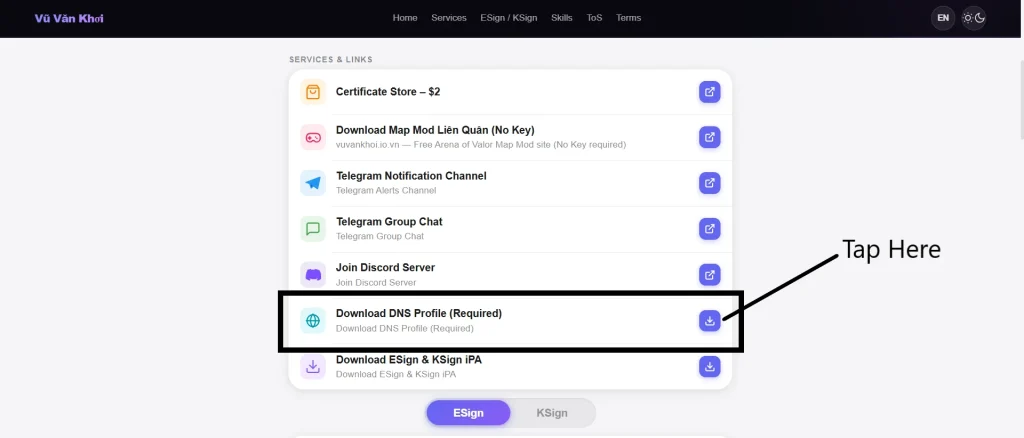
- Open khoindvn.io.vn in Safari on your iPhone or iPad. Scroll to Services & Links, find Download DNS Profile (Required), and tap the download icon beside it.
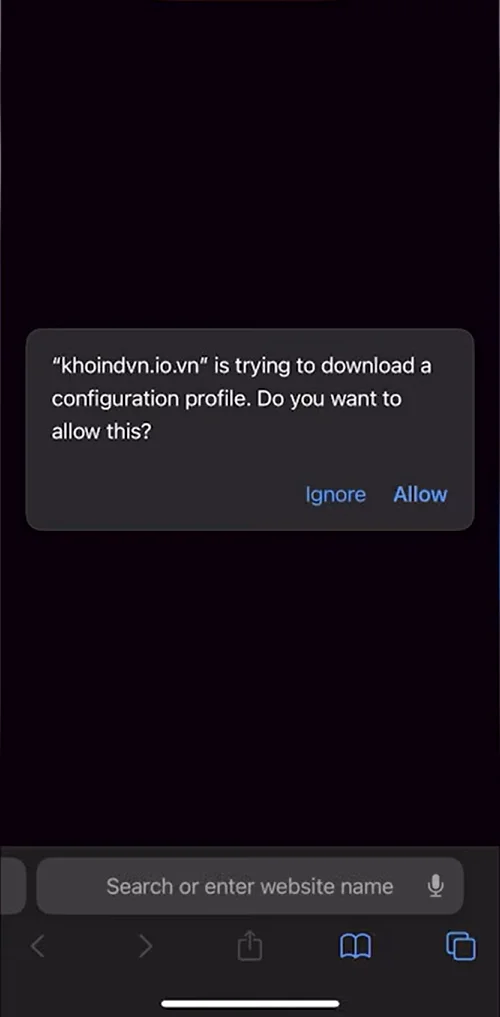
- When Safari asks for permission to download the configuration profile, tap Allow.
- After the profile downloads, open Settings → Profile Downloaded, select the DNS profile, and tap Install. Follow the on-screen prompts until the profile installation is complete.
Step 2: Download and Install KSign
- Return to khoindvn.io.vn and scroll to the ESign / KSign section. Select the KSign tab to view the versions currently available.
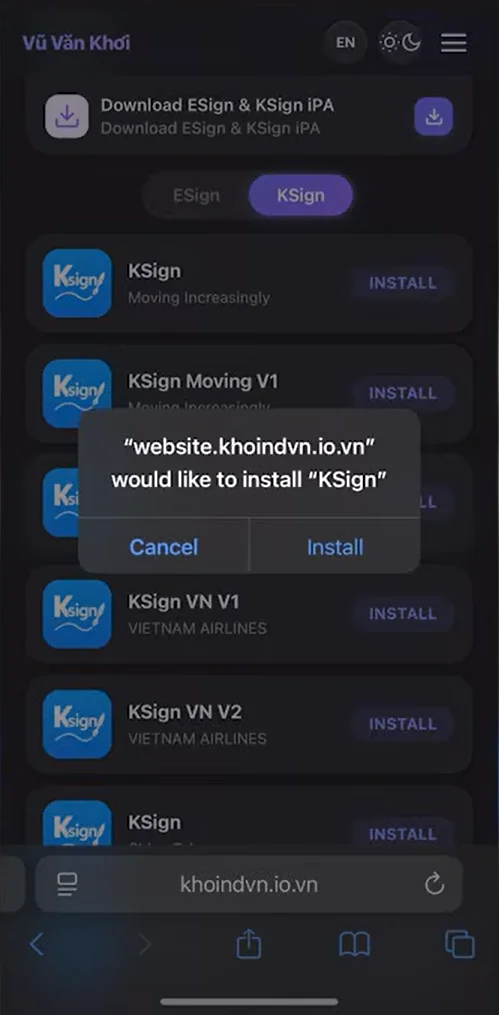
- Choose a KSign version and tap Install. If that version does not install or open, return to the KSign list and try another one, as the certificates associated with individual versions can become revoked or blacklisted.
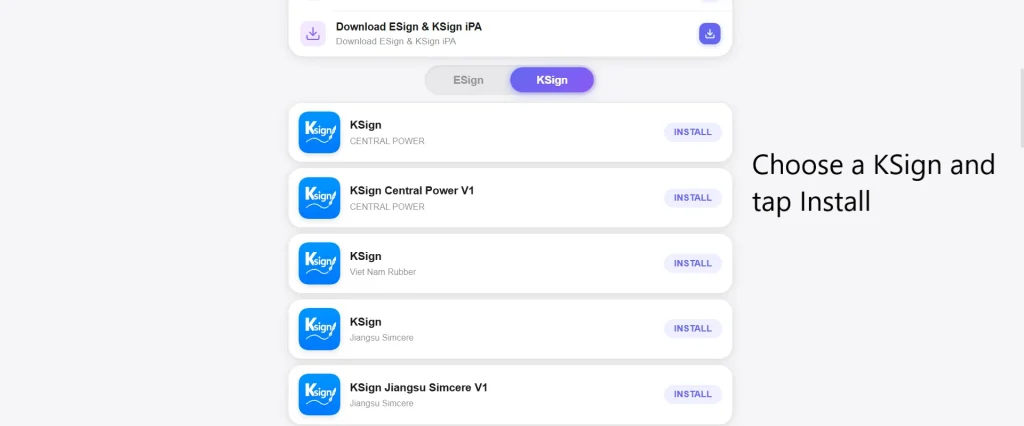
- When iOS asks whether you want to install KSign, confirm the installation and wait for the KSign icon to appear on your Home Screen.
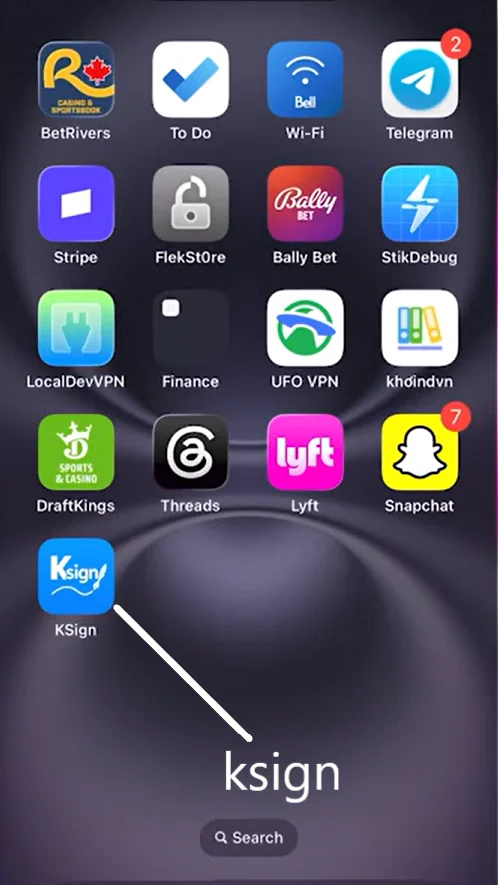
- Once the KSign icon appears on your Home Screen, you need to trust its developer profile before opening the app.
- Open Settings → General → VPN & Device Management. Select the developer profile associated with the KSign you installed and tap Trust.
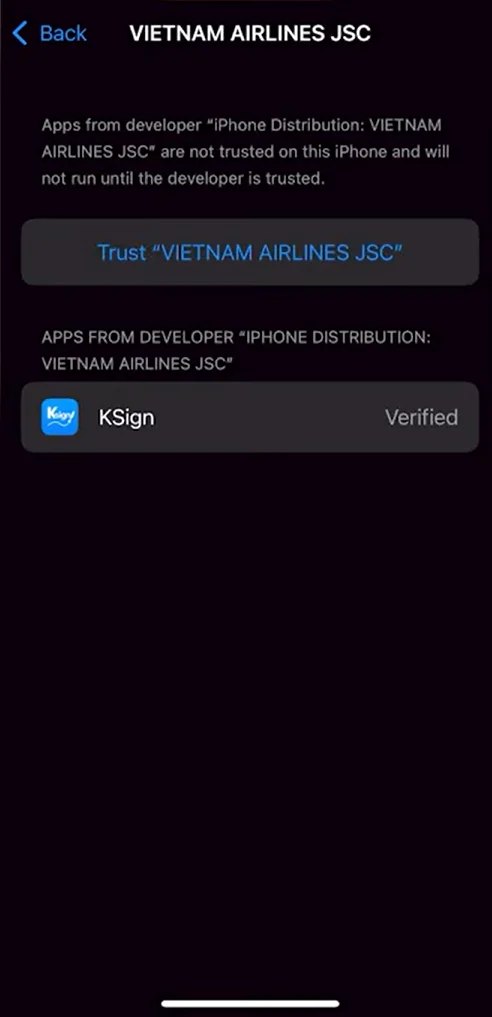
- If iOS asks you to restart the device, restart it. After the restart, open KSign and confirm that the KSign app launches correctly.
Note: With the current KSign installation method described here, the signing certificate is normally included with KSign, so manual certificate import is not required.
Step 3: Import the Delta IPA into KSign
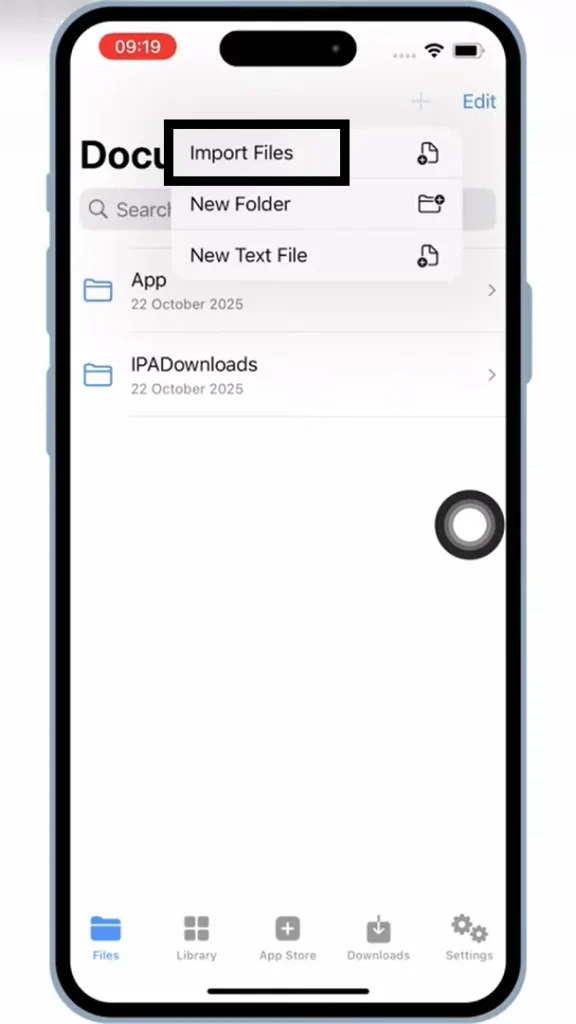
Open KSign and tap the + icon at the top.
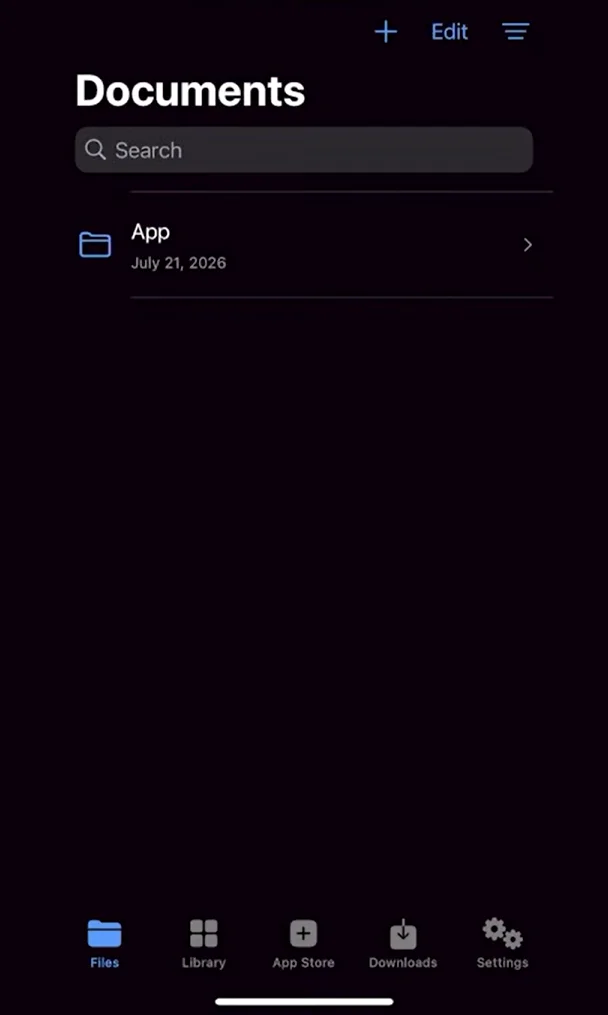
- Select “Import Files”.
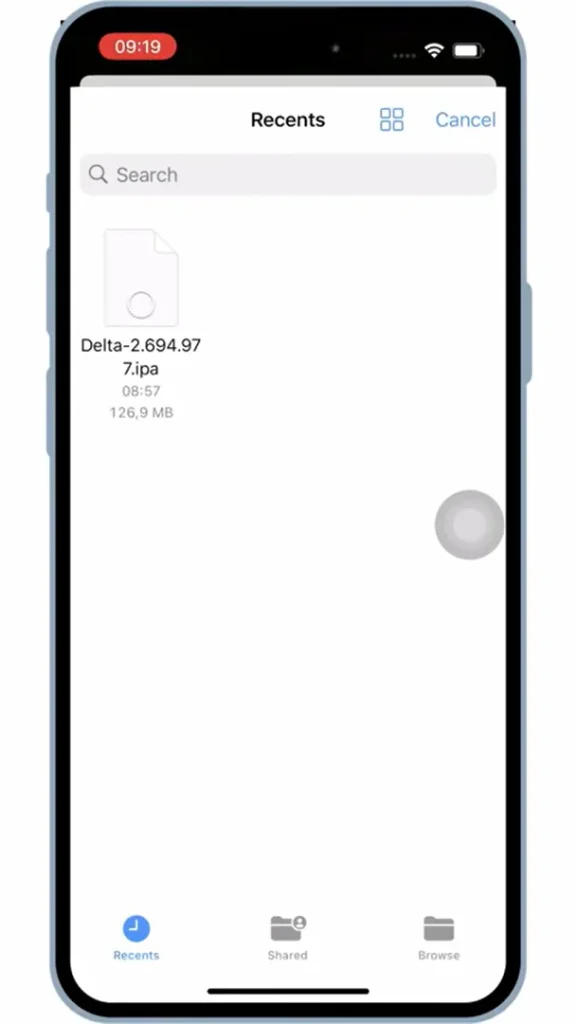
- Locate the Delta IPA in the Files app, select it, and tap Open.
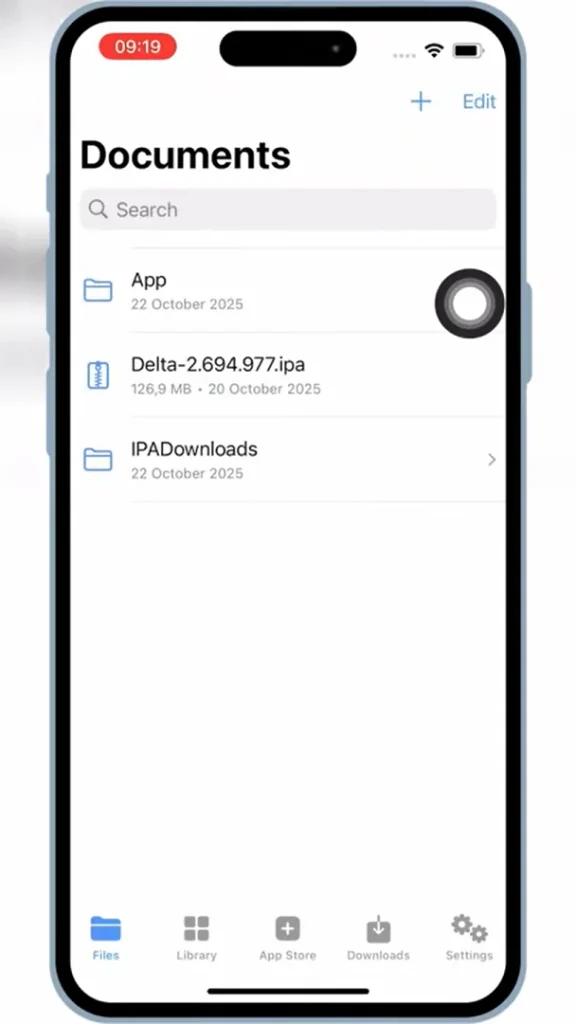
- Wait for KSign to finish importing the file.
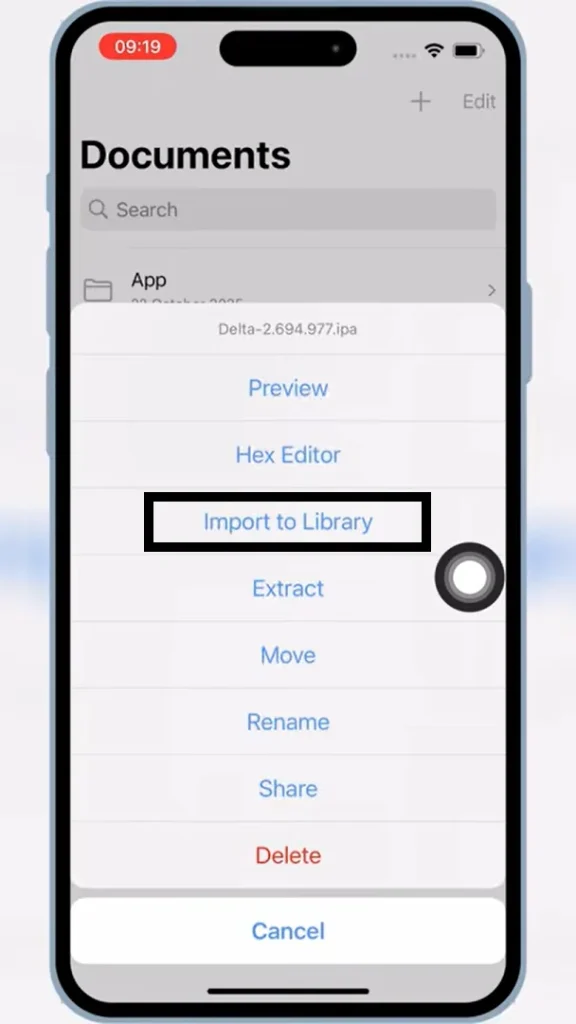
- Tap the imported Delta IPA, then select Import to Library.
- Open the Library tab and confirm that Delta appears there.
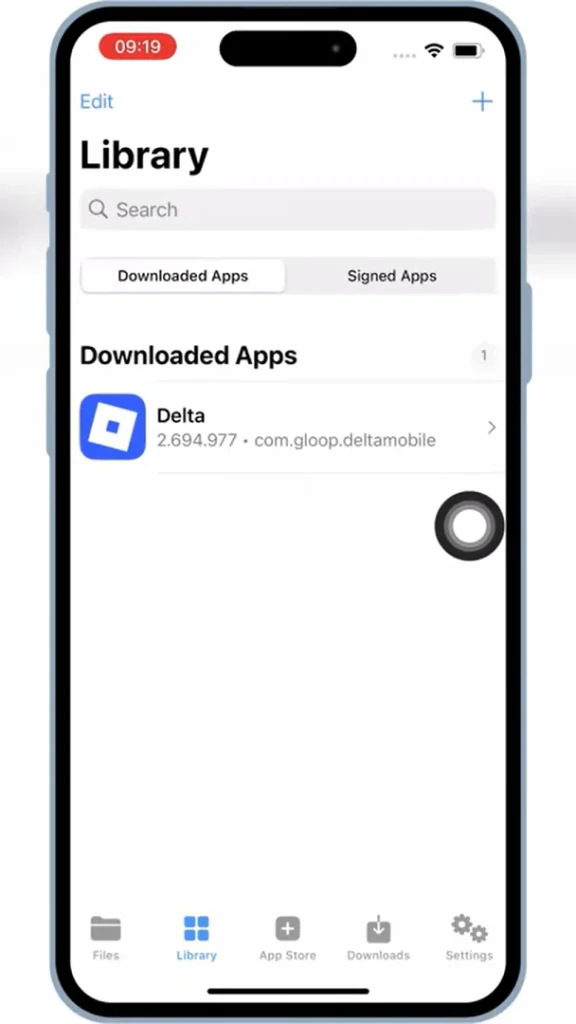
Step 4: Sign and Install Delta
- Open the Library tab in KSign and tap the Delta IPA you imported in Step 3.
- Tap Sign & Install.
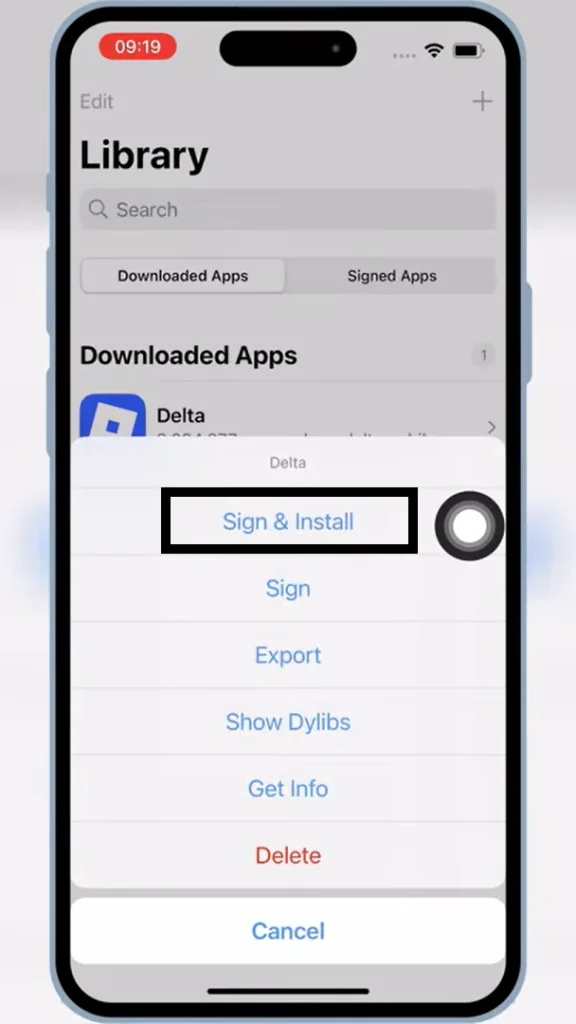
- Select Start Signing.
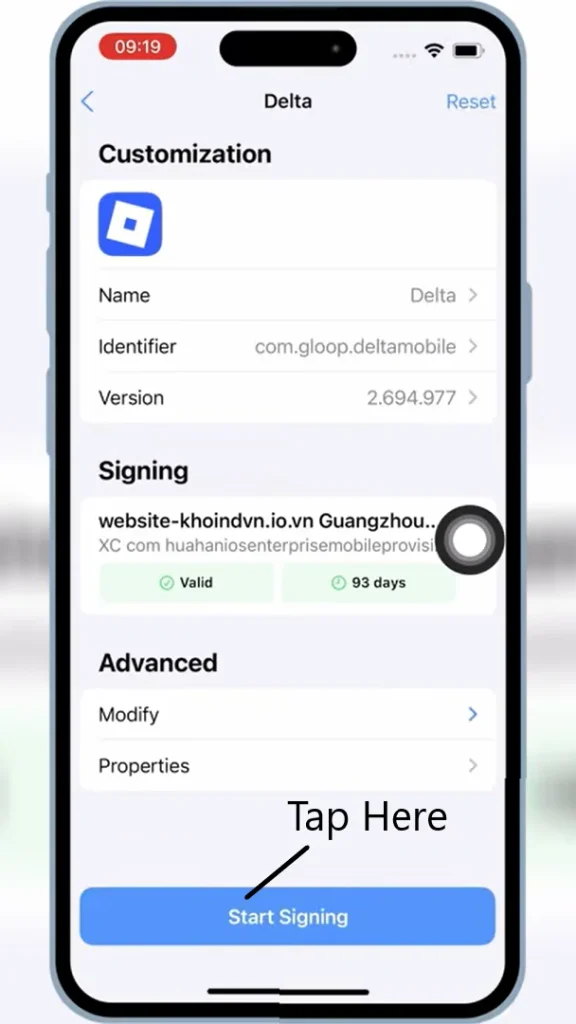
- Wait for KSign to finish signing the IPA. When the installation prompt appears, tap Install.
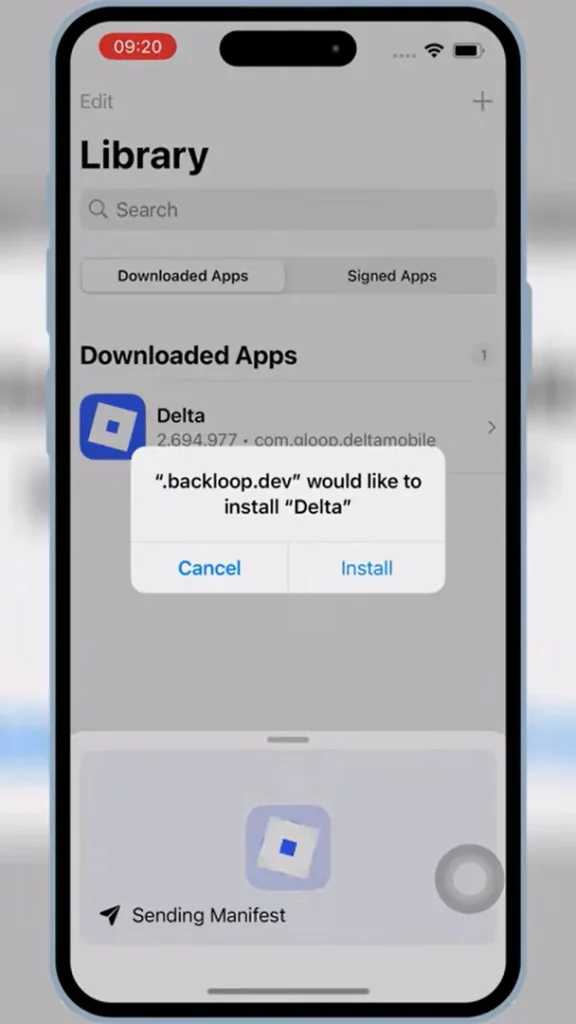
- Allow the installation to finish. The Delta app icon should appear on your iPhone or iPad Home Screen.
Important: Keep KSign open while the Delta IPA is being signed and installed.
Method 2: Install Delta Executor iOS Using Sideloadly
Sideloadly provides a computer-based method for installing the Delta Executor IPA on an iPhone or iPad. Unlike the KSign method above, Sideloadly requires a Windows PC or Mac connected to the iOS device.
Before starting, make sure you have:
- A Windows PC running Windows 7 or later, or a Mac running macOS 10.12 Sierra or later.
- An iPhone or iPad running iOS 7 or later.
- An Apple ID with an account age of 13 or older.
- A USB cable to connect the iPhone or iPad to the computer.
- The latest Delta Executor IPA downloaded to the computer.
- Sideloadly installed on the Windows PC or Mac.
Step 1: Download and Set Up Sideloadly
- Open the official Sideloadly website on your Windows PC or Mac and download the version for your operating system.
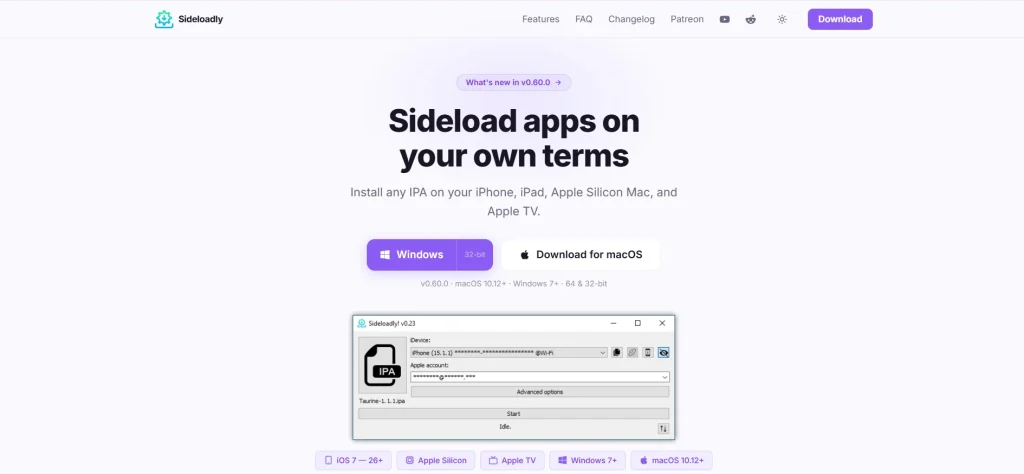
- Install Sideloadly by opening the downloaded installer and following the on-screen instructions.
- Make sure iTunes is installed on the computer before continuing.
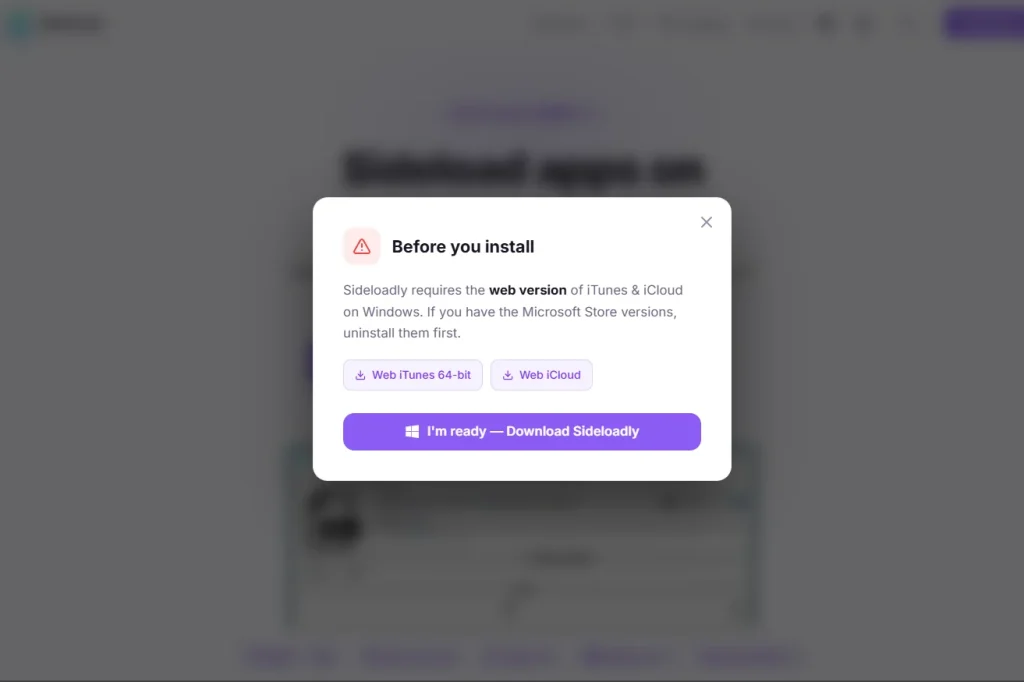
- Download the latest Delta Executor IPA to your computer if you have not already downloaded it. Click the download button above to get the latest Delta iOS Executor.
- Connect your iPhone or iPad to the computer using a USB cable.
- On Windows, right-click Sideloadly and select Run as administrator to help avoid permission-related issues. On macOS, open Sideloadly normally.
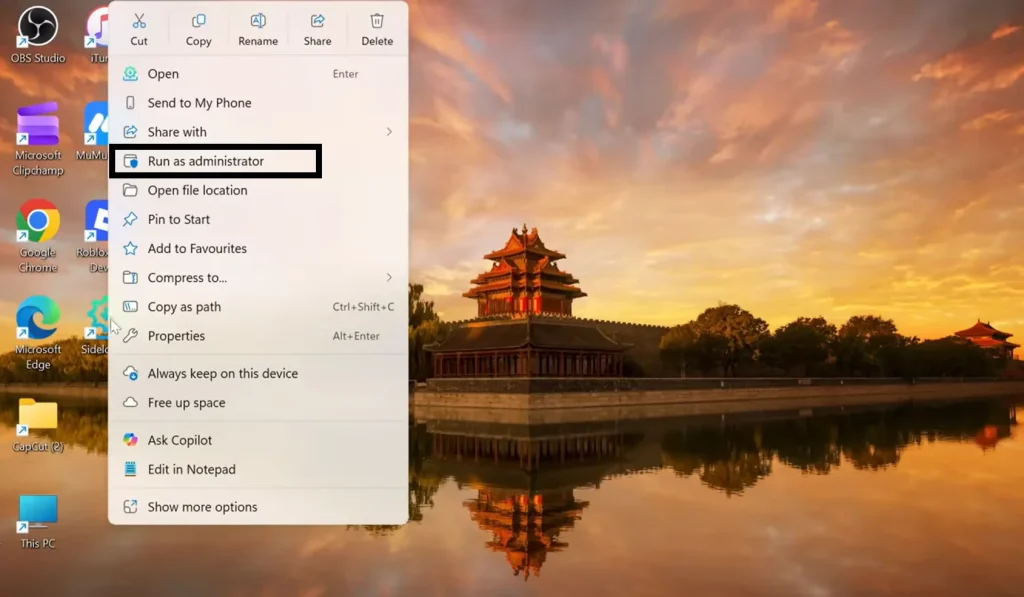
- Wait for your connected iPhone or iPad to appear in Sideloadly before continuing.
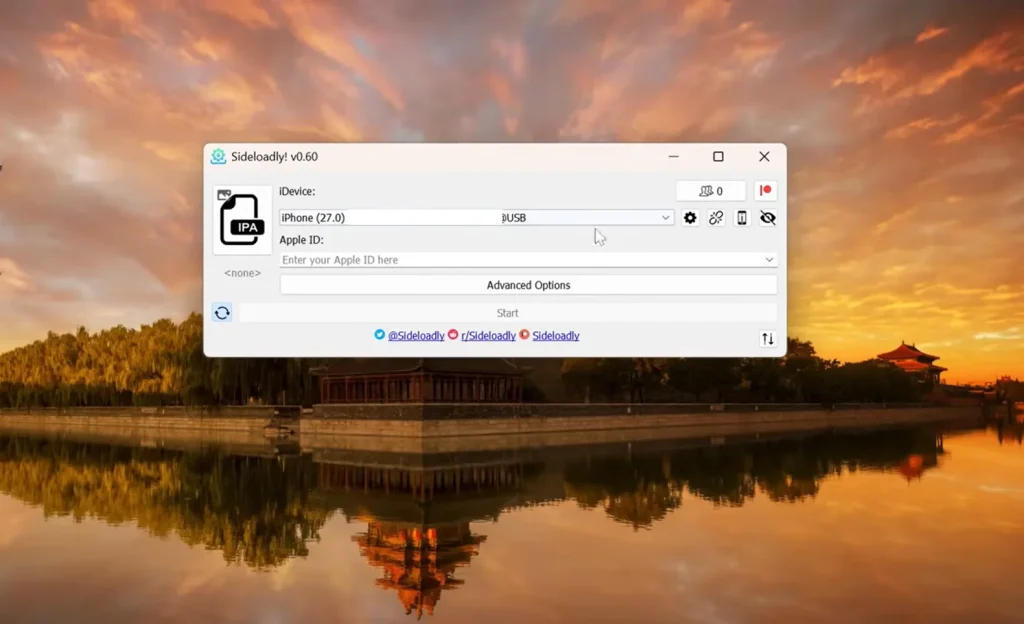
Step 2: Load the Delta Executor IPA into Sideloadly
Once Sideloadly detects your connected iPhone or iPad, add the Delta IPA that will be signed and installed.
- Click the IPA button in Sideloadly.
- Locate the Delta Executor IPA you downloaded in Step 1 and select it.
- Confirm that the Delta IPA is loaded in Sideloadly.
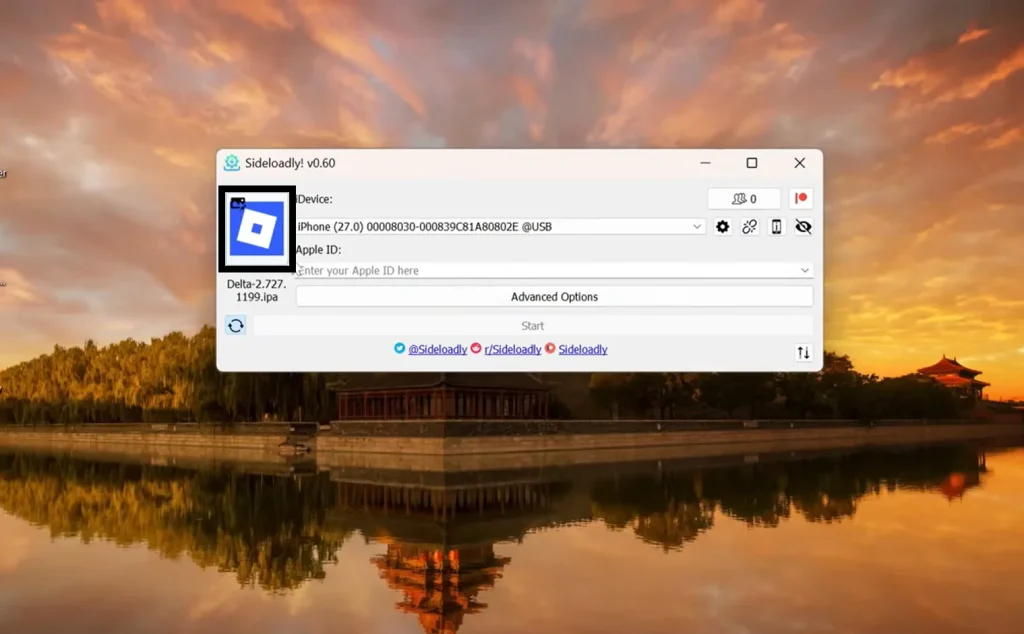
- Enter your Apple ID email address in the Apple ID field.
Your Apple ID is used by Sideloadly as part of the app-signing process.
If your Apple account uses two-factor authentication, keep access to your trusted device or phone number because you may be asked for a verification code during signing.
Step 3: Sign and Install Delta with Sideloadly
- After the Delta IPA, Apple ID, and connected device are shown in Sideloadly, click Start.
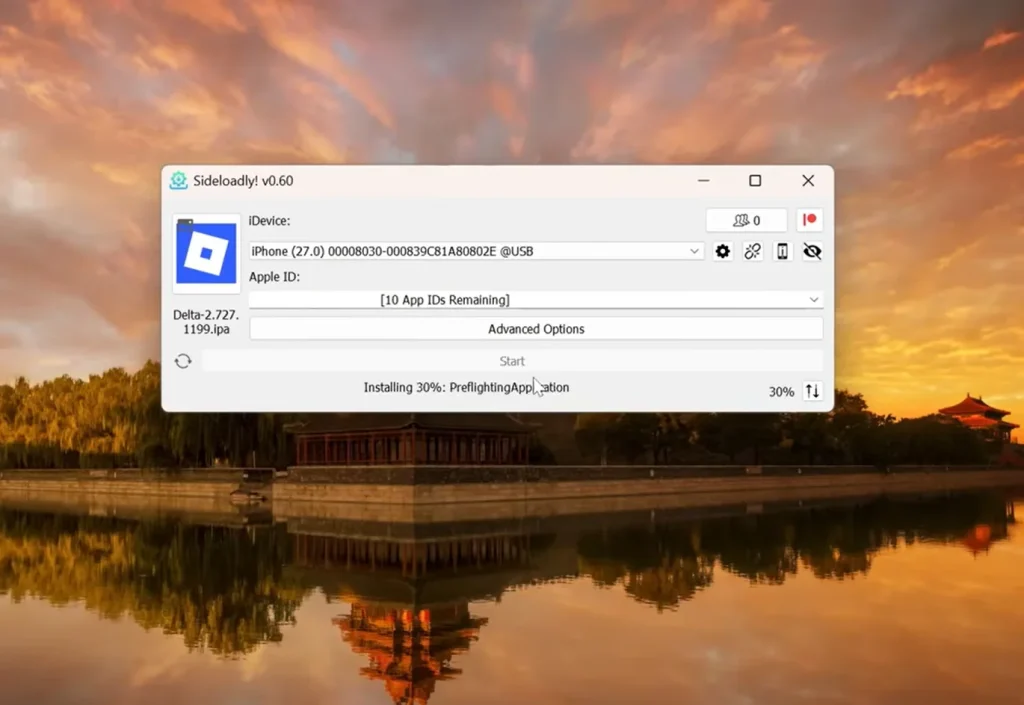
- If prompted, enter your Apple ID password and complete the two-factor authentication (2FA) verification.
- Sideloadly will begin signing the Delta IPA and installing it on the connected iPhone or iPad.
- Keep the device connected to the computer while the process is running.
- Wait for Sideloadly to complete the installation. Once finished, the Delta app icon should appear on your iPhone or iPad.
Step 4: Trust Delta and Enable Developer Mode
After Delta finishes installing, iOS may require you to trust the developer app and enable Developer Mode before Delta can open.
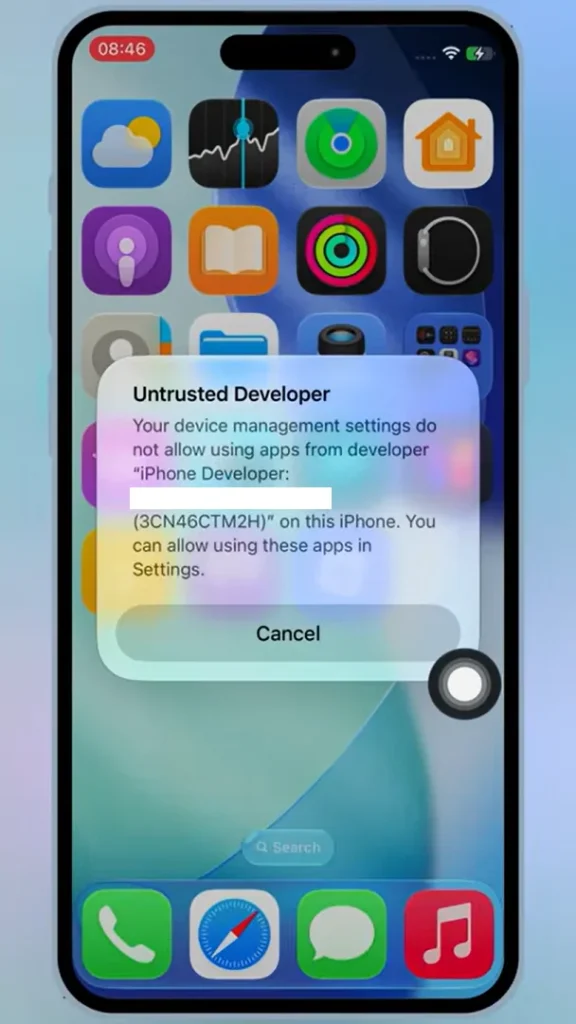
- On your iPhone or iPad, open Settings → General → VPN & Device Management.
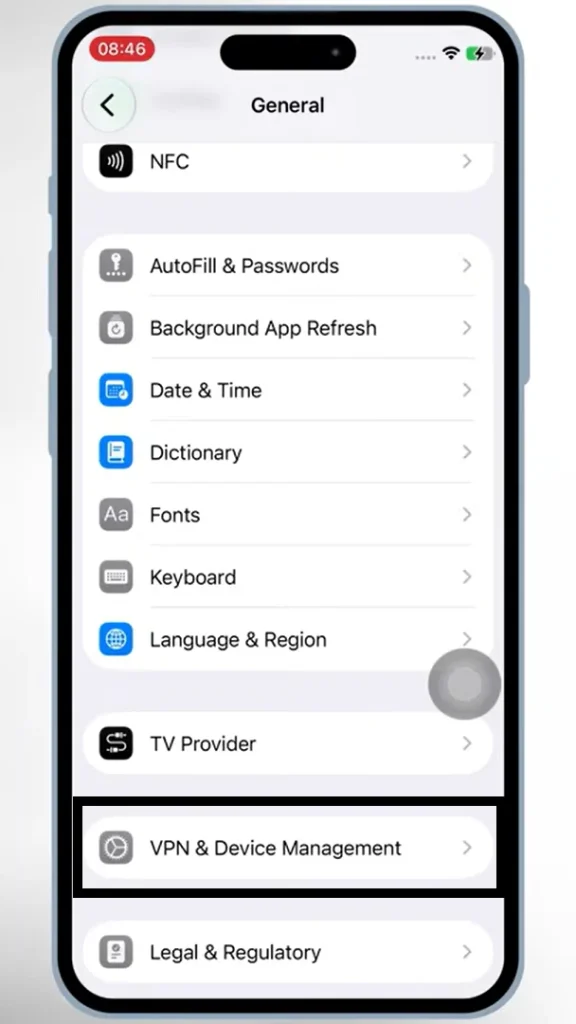
- Under Developer App, select the profile associated with the Apple ID used to sign Delta.
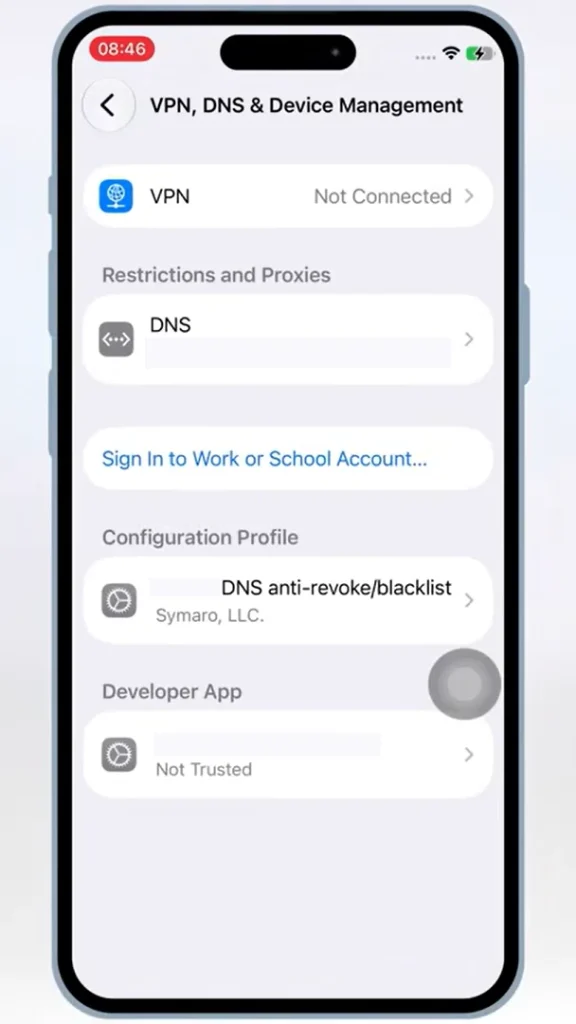
- Tap Trust, then confirm when prompted.
- On iOS 16 or later, open Settings → Privacy & Security → Developer Mode.
- Turn Developer Mode on and restart your iPhone or iPad when prompted.
- After the device restarts, confirm that you want to enable Developer Mode.
- Return to the Home Screen and open Delta.
How to Activate Delta Executor on iOS
After Delta is installed and opens successfully, you need a valid Delta Executor Key to activate its script execution features.
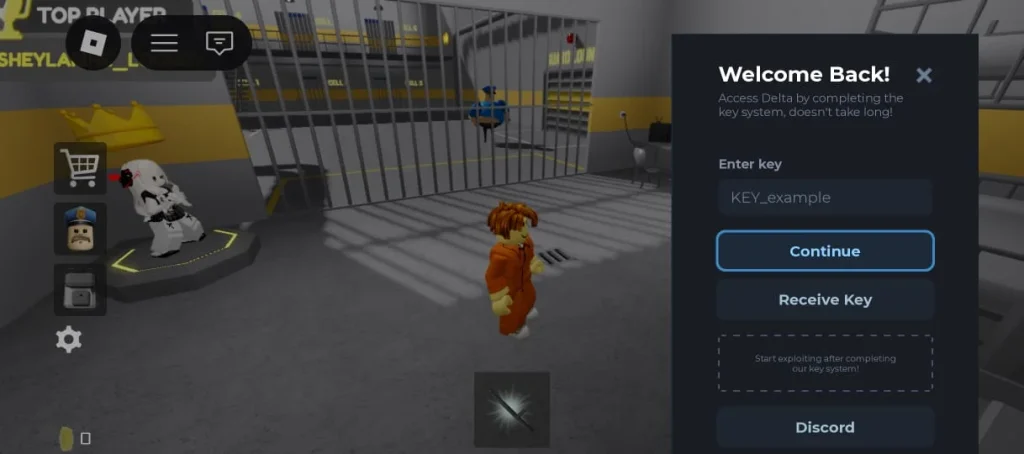
- Open Delta on your iPhone or iPad.
- When Delta requests a key, follow the key-generation process shown inside the app.
- Complete the required steps to obtain your current Delta key.
- Copy the generated key and return to Delta.
- Paste the key into the activation field and submit it.
- Once the key is accepted, Delta will unlock its script execution interface.
Delta Executor iOS Not Working? Common Errors and Fixes
If Delta fails to install or stops opening after installation, use the error shown by iOS or KSign to identify the cause.
Integrity Could Not Be Verified
If iOS reports that the app’s integrity cannot be verified, the signing certificate may no longer be valid or verifiable. Reinstall the Delta IPA using a working certificate.
Delta Crashes on Launch
If Delta closes immediately after you open it, the signing certificate may have been revoked. Sign and reinstall the IPA with a working certificate.
Delta Is No Longer Available
The “Delta Is No Longer Available” error can occur when the certificate used for the installed app has been revoked. Reinstall Delta with a working certificate.
Insufficient Storage
If installation fails because of insufficient storage, remove unused apps or files to free up space, then try the installation again.
Internet Connection Is Required to Verify the App
If you receive an “Internet connection is required to verify” error, the device may be blacklisted from the certificate being used. Use a different certificate or restore the device.
KSign Stuck on Ready
If the KSign signing process remains stuck on Ready, open KSign -> Settings -> Server & SSL and change Installation Type to Semi Local. If KSign asks you to suspend, follow the prompt and then try signing the IPA again.
Does Delta Executor Support 64-Bit iOS Devices?
Yes. Delta supports 64-bit iPhones and iPads through a single IPA. Older 32-bit devices are not supported by modern iOS versions.
Does Delta Executor iOS Require a Jailbreak?
No. Delta Executor can be installed on a supported iPhone or iPad without jailbreaking the device by using the KSign installation method described above.
Does Delta Executor iOS Require a Computer?
No. You can install Delta without a computer using KSign. Alternatively, Sideloadly requires a Windows PC or Mac.